How to Recognise a Damaged or Unsupported Image File
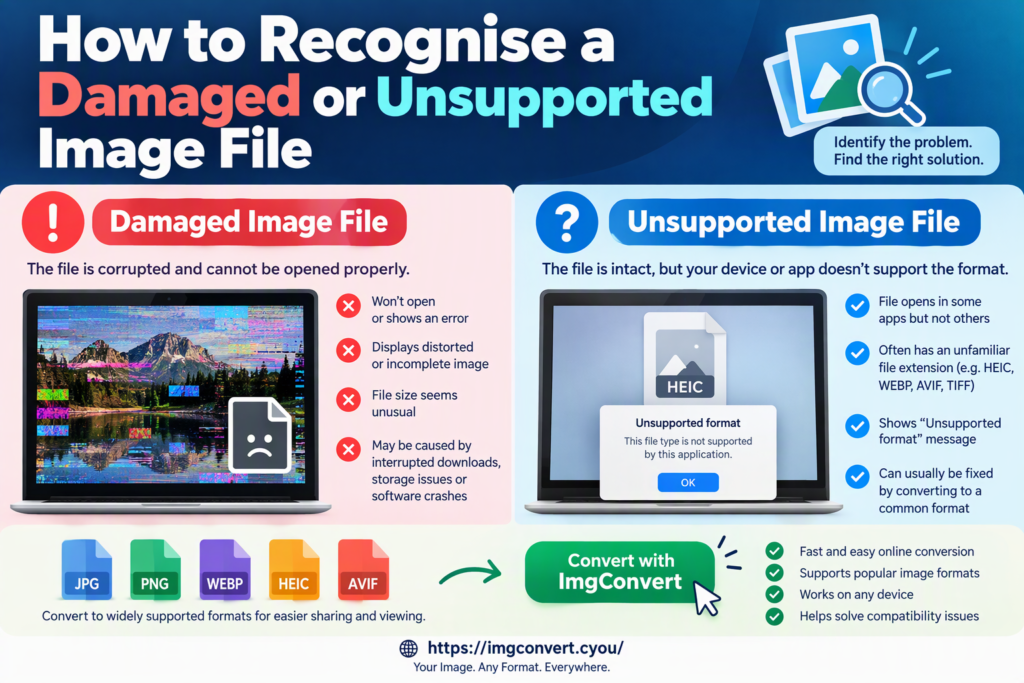
Trying to open an image only to see an error message can be frustrating. In most cases, the problem comes down to one of two issues: the image file is damaged (corrupted) or the format is unsupported by the device, application, or browser you’re using. Understanding the difference can help you fix the problem quickly and avoid losing important photos, screenshots, graphics, or documents.
Whether you’re working with personal photos, downloaded images, or files for your website, this guide explains how to recognize damaged or unsupported image files, what causes these problems, and how tools such as ImgConvert can help convert images into compatible formats.
What Is a Damaged Image File?
A damaged image file, often called a corrupted image, is a file whose data has been altered, lost, or improperly saved. Because image viewers rely on specific data structures, even a small corruption can prevent the file from opening correctly.
Common signs of a damaged image include:
- The image refuses to open.
- An error message appears when you try to view it.
- Only part of the image loads.
- Colors appear distorted or incorrect.
- The image freezes the application.
- The file size appears unusually small or unusually large.
- The image opens but displays random blocks, lines, or artifacts.
Damage can occur during file transfers, storage failures, interrupted downloads, software crashes, or malware infections.
What Is an Unsupported Image File?
An unsupported image file is not necessarily broken. Instead, the software you’re using cannot recognize or decode its format.
For example:
- Older image viewers may not support newer formats.
- Some web browsers may have limited support for certain image types.
- Mobile devices may lack compatibility with specialized formats.
- Editing software may only work with specific file extensions.
In these cases, the image may be perfectly intact but inaccessible through your current application.
Quick Comparison: Damaged vs. Unsupported Images
| Feature | Damaged Image File | Unsupported Image File |
|---|---|---|
| File data integrity | Broken or corrupted | Intact |
| Opens in other apps | Usually no | Often yes |
| Conversion possible | Sometimes difficult | Usually easy |
| Error messages | Corruption-related | Format-related |
| Partial image display | Common | Rare |
| File extension | Often unchanged | Often uncommon |
This distinction helps determine whether you need file repair or format conversion.
Common Signs of a Damaged Image File
1. The File Won’t Open Anywhere
If multiple programs fail to open the image, corruption is likely.
For example:
- Windows Photos cannot open it.
- Adobe Photo-shop reports an error.
- Web browsers fail to display it.
- Mobile gallery apps show a blank preview.
When every application struggles with the file, the issue is usually damage rather than compatibility.
2. Missing Sections or Visual Artifacts
Corrupted image files often display:
- Horizontal lines
- Random color blocks
- Pix-elated regions
- Missing sections
- Distorted textures
These artifacts suggest that image data has been altered or lost.
3. Incorrect File Size
Check the file properties.
Warning signs include:
- A photo that should be several megabytes but is only a few kilobytes.
- An unusually large file size for a simple image.
- A size of 0 bytes.
Sudden size changes often indicate corruption during saving, downloading, or transferring.
4. Error Messages During Opening
Common messages include:
- “File is damaged.”
- “Cannot open image.”
- “Unknown image format.”
- “Image data is invalid.”
- “The file appears to be corrupted.”
Although wording varies between applications, these messages frequently point toward damaged image data.
5. Thumbnail Preview Is Missing
Many operating systems generate thumbnails automatically.
If:
- The thumbnail is blank,
- The preview shows a generic icon,
- Or the preview fails while other images display correctly,
there may be corruption in the image file.
Common Signs of an Unsupported Image File
1. The File Opens in Some Apps but Not Others
This is one of the clearest indicators.
For example:
- The image works in a web browser.
- It opens on your phone.
- It fails in an older desktop editor.
The file is likely supported by some software but unsupported by another.
2. Unfamiliar File Extensions
Many users recognize common formats such as:
- JPG
- JPEG
- PNG
- GIF
- BMP
However, newer or specialized formats include:
- WEBP
- HEIC
- HEIF
- AVIF
- SVG
- TIFF
Some applications still lack full support for these formats.
3. “Unsupported Format” Error Messages
Messages may include:
- “Unsupported image type.”
- “Format not recognized.”
- “Unable to decode image.”
- “File format not supported.”
Unlike corruption errors, these messages focus on compatibility rather than damage.
4. The Image Works Online but Not Locally
If a file displays correctly in one environment but not another, format compatibility may be the issue.
For example:
- The image displays correctly on a website.
- Your local image viewer cannot open it.
The software may simply lack support for that format.
Why Image Files Become Damaged
Several factors can corrupt image files.
Interrupted Downloads
If a network connection drops during a download, the file may be incomplete.
This often creates images that appear normal initially but fail to open later.
Storage Device Problems
Damaged sectors on:
- Hard drives
- SSDs
- USB drives
- Memory cards
can alter image data over time.
Improper Device Removal
Removing a USB drive or memory card before file transfer finishes can corrupt images.
Always eject storage devices safely.
Software Crashes
Applications may save incomplete image data if they unexpectedly crash during editing or export.
Malware and Viruses
Malicious software can modify, encrypt, or damage image files.
Keeping devices updated and protected reduces this risk.
Why Image Files Become Unsupported
Compatibility issues usually occur because technology evolves faster than software updates.
Newer Image Formats
Formats such as AVIF and HEIC provide better compression and image quality.
However, older software may not recognize them.
Outdated Applications
Image viewers released years ago may only support traditional formats like JPG, PNG, and BMP.
Updating your software can solve many compatibility problems.
Operating System Limitations
Some operating systems require special codes or extensions to support newer image formats.
Without these components, the file may appear unsupported.
Specialized Professional Formats
Certain industries use unique image formats designed for printing, medical imaging, engineering, or photography.
General-purpose software may not support these files.
How to Identify the Image Format
Before troubleshooting, verify the actual file type.
On Windows
- Right-click the image.
- Select Properties.
- Look at the file extension.
On macOS
- Right-click the file.
- Select Get Info.
- Examine the file type details.
Verify the Extension Carefully
A file ending in:
- .jpg
- .png
- .webp
- .heic
- .avif
- .tiff
may immediately reveal a compatibility issue.
Sometimes files are incorrectly renamed, which can also create opening errors.
Practical Checklist for Troubleshooting
Use this checklist when an image refuses to open.
Step 1: Try Another Viewer
Open the image using:
- Different image viewers
- Web browsers
- Photo editors
- Another device
If it works elsewhere, the issue is usually compatibility.
Step 2: Compare File Size
Check whether the image size seems reasonable compared with similar files.
Unusual file sizes often indicate corruption.
Step 3: Test Other Images
Try opening several other images from the same location.
If only one file fails, the file itself may be damaged.
Step 4: Check the Extension
Verify that the format is recognized by your software.
Step 5: Re-download the Image
If the image came from the internet, download it again.
The original download may have been incomplete.
Step 6: Convert the Format
If the file is intact but unsupported, converting it can solve the problem quickly.
How Image Conversion Can Help
Conversion is one of the simplest solutions for unsupported image files.
For example:
- HEIC → JPG
- WEBP → PNG
- AVIF → JPG
- TIFF → PNG
Converting the image creates a new file in a format supported by more applications and devices.
This is especially useful when sharing images with others who may not have software that supports modern formats.
Using ImgConvert to Handle Unsupported Image Files
When you discover that an image is unsupported rather than damaged, converting it to a common format is usually the fastest solution.
ImgConvert allows users to convert between popular image formats through an easy online process. Converting images into widely supported formats such as JPG or PNG can improve compatibility across devices, browsers, image editors, and operating systems.
For example:
- Convert HEIC photos from smartphones into JPG.
- Transform WEBP files into PNG.
- Convert AVIF images into widely compatible formats.
- Prepare images for website uploads and sharing.
If your image viewer cannot open a file because of format limitations, converting it with a tool like https://imgconvert.cyou/ may resolve the issue without affecting the original image content.
You may also find these related guides useful:
- HEIC to JPG Conversion for images captured on modern smartphones.
- WEBP to PNG Conversion when compatibility with older software is needed.
- AVIF to JPG Conversion for easier sharing and editing.
- PNG to JPG Conversion when smaller file sizes are preferred.
These image conversion workflows can help minimize compatibility issues across platforms.
Common Mistakes People Make
Assuming Every Opening Error Means Corruption
Many users believe a file is broken simply because it won’t open.
In reality, the format may be unsupported.
Ignoring the File Extension
The extension often provides the first clue about the problem.
Checking it can save significant troubleshooting time.
Repeatedly Saving Over a Damaged File
If a file appears corrupted, create a backup copy before attempting repairs.
Repeated edits can worsen the problem.
Using Outdated Software
Older image viewers frequently struggle with modern image formats.
Keeping software current improves compatibility.
FAQs
Can a damaged image file be repaired?
Sometimes. Minor corruption may be recoverable using specialized repair tools or backup copies. Severe corruption can permanently damage image data.
How can I tell if an image is unsupported instead of corrupted?
If the image opens successfully in another application or device, it is likely unsupported rather than damaged.
Why does my phone open an image that my computer cannot?
Your phone may support newer image formats such as HEIC or AVIF, while your computer software may not.
Does converting an image fix corruption?
Usually no. Conversion is most effective for compatibility issues. Severely corrupted images may need repair before conversion.
Which image formats are the most widely supported?
JPG and PNG remain the most universally supported image formats across devices, browsers, operating systems, and editing software.
Final Thoughts
Recognizing whether an image file is damaged or unsupported is the first step toward solving the problem. Damaged files typically show corruption symptoms such as missing sections, visual artifacts, or widespread opening failures. Unsupported files, on the other hand, are often perfectly intact but require software that understands the format.
Before assuming an image is lost, check the file extension, try another viewer, compare file sizes, and test compatibility. If the issue is format-related, converting the image to a widely supported format through ImgConvert can often restore access quickly and make sharing, editing, and storage much easier.