Image Dimensions vs File Size: Understanding the Difference
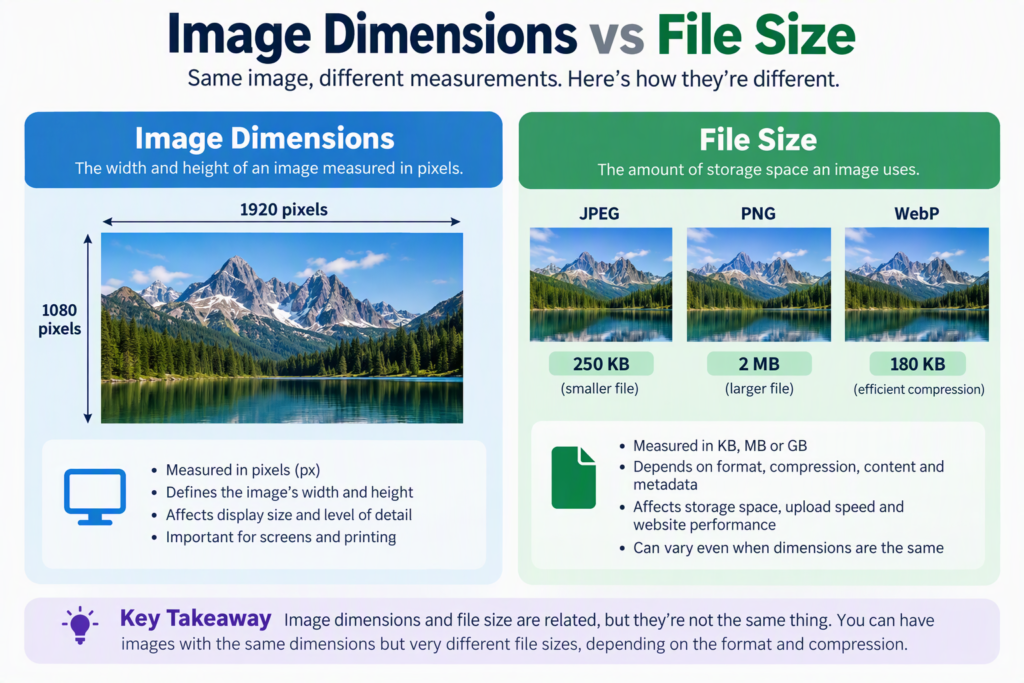
If you’ve ever resized an image and expected the file size to shrink by the same amount, you may have been surprised by the result. Image dimensions and file size are related, but they are not the same thing. Dimensions describe how many pixels an image contains, while file size measures how much storage space the image occupies. Understanding the difference helps you create images that look great while loading quickly and using less storage.
Whether you’re a blogger, web designer, photographer, student, or social media creator, knowing how dimensions affect file size can help you optimize images without sacrificing quality.
What Are Image Dimensions?
Image dimensions refer to the width and height of an image measured in pixels.
For example:
- 800 × 600 pixels
- 1920 × 1080 pixels
- 4000 × 3000 pixels
An image that is 1920 pixels wide and 1080 pixels tall contains:
1920 × 1080 = 2,073,600 pixels
Each pixel stores visual information, including color data. The more pixels an image contains, the more detail it can potentially display.
Why Dimensions Matter
Image dimensions affect:
- Visual quality
- Screen display size
- Print resolution
- Cropping flexibility
- Loading speed
Large dimensions are useful when printing photos or displaying images on high-resolution screens. Smaller dimensions are often better for websites, emails, and social media where speed matters.
What Is File Size?
File size is the amount of storage space an image occupies on a disk, device, or server.
File sizes are usually measured in:
- Bytes (B)
- Kilobytes (KB)
- Megabytes (MB)
- Gigabytes (GB)
Examples:
- A small web icon may be 20 KB
- A blog image may be 200 KB
- A high-resolution photograph may be 5 MB
- A professional camera image may exceed 20 MB
File size determines:
- Upload speed
- Download speed
- Website performance
- Storage requirements
- Bandwidth usage
Unlike image dimensions, file size depends on several factors beyond pixel counts.
The Key Difference at a Glance
| Feature | Image Dimensions | File Size |
|---|---|---|
| Measures | Width and height in pixels | Storage space used |
| Unit | Pixels (px) | KB, MB, GB |
| Affects | Display size and detail | Storage and loading speed |
| Can change independently? | Yes | Yes |
| Influenced by compression? | No | Yes |
| Influenced by image format? | No | Yes |
Many people mistakenly assume that larger dimensions automatically mean a larger file size. While dimensions often contribute to file size, other factors can dramatically increase or decrease storage requirements.
How Image Dimensions Affect File Size
In general, images with more pixels require more data.
Consider these dimensions:
| Dimensions | Total Pixels |
|---|---|
| 800 × 600 | 480,000 |
| 1920 × 1080 | 2,073,600 |
| 4000 × 3000 | 12,000,000 |
The 4000 × 3000 image contains 25 times more pixels than the 800 × 600 image.
Because every pixel stores color information, higher dimensions normally increase file size.
However, the relationship is not always proportional because image compression plays a major role.
Why Two Images with the Same Dimensions Can Have Different File Sizes
Imagine two images that are both 1920 × 1080 pixels.
One image may be:
- 250 KB
- 2 MB
- 8 MB
How is that possible?
Several factors influence file size beyond dimensions.
1. Image Format
Different image formats use different storage methods.
Common formats include:
JPEG (JPG)
JPEG uses lossy compression.
Benefits:
- Small file sizes
- Ideal for photographs
- Fast loading
Drawbacks:
- Some quality loss after compression
PNG
PNG uses lossless compression.
Benefits:
- Better image preservation
- Transparency support
Drawbacks:
- Larger files than JPEG
WebP
WebP combines modern compression techniques.
Benefits:
- Smaller files than JPEG and PNG in many cases
- Supports transparency
- Good quality
AVIF
AVIF offers highly efficient compression.
Benefits:
- Very small file sizes
- Excellent quality retention
Drawbacks:
- Compatibility may vary on older systems
A 1920 × 1080 photo saved as PNG may be several times larger than the same image saved as JPEG or AVIF.
2. Compression Level
Compression removes or optimizes image data to reduce storage requirements.
For example:
- JPEG Quality 100 may create a 4 MB file
- JPEG Quality 75 may create a 900 KB file
- JPEG Quality 60 may create a 500 KB file
All versions can have exactly the same dimensions while having dramatically different file sizes.
3. Image Content
The content of the image affects compressibility.
Images with:
- Large areas of solid colors
- Simple graphics
- Limited detail
often produce smaller files.
Images with:
- Complex patterns
- Fine textures
- Dense visual information
typically produce larger files.
A blue sky compresses more efficiently than a forest full of leaves.
4. Color Depth
Color depth refers to how many colors an image can represent.
Examples include:
- 8-bit color
- 24-bit color
- 32-bit color
Higher color depth usually means more image information and potentially larger file sizes.
5. Metadata
Images often contain embedded information such as:
- Camera settings
- Date and time
- GPS location
- Copyright details
Metadata can add extra bytes to a file even though dimensions remain unchanged.
Real Example: Dimensions vs File Size
Let’s compare three hypothetical versions of the same photo.
| Version | Dimensions | Format | File Size |
|---|---|---|---|
| A | 4000 × 3000 | JPEG | 4 MB |
| B | 4000 × 3000 | PNG | 12 MB |
| C | 1920 × 1440 | JPEG | 900 KB |
Notice:
- Versions A and B have identical dimensions but different file sizes.
- Version C has smaller dimensions and a smaller file size.
- The format alone significantly changes storage requirements.
This illustrates why dimensions are only one piece of the puzzle.
What Happens When You Resize an Image?
Resizing changes image dimensions.
For example:
- Original: 4000 × 3000 pixels
- Resized: 2000 × 1500 pixels
The new image contains fewer pixels.
As a result:
- Storage requirements usually decrease
- Upload times improve
- Page load speed often improves
However, the exact reduction depends on:
- File format
- Compression settings
- Image content
Reducing dimensions by 50% does not always reduce file size by exactly 50%.
Understanding Resolution and DPI
People often confuse dimensions, resolution, and file size.
They are different concepts.
Pixel Dimensions
These define the actual width and height of the image.
Example:
- 1920 × 1080 pixels
DPI (Dots Per Inch)
DPI describes printing density.
Examples:
- 72 DPI
- 150 DPI
- 300 DPI
Changing DPI alone usually does not affect file size significantly because the pixel count remains the same.
For example:
- 1920 × 1080 at 72 DPI
- 1920 × 1080 at 300 DPI
Both images contain the same number of pixels.
The physical print size changes, but the dimensions do not.
Why File Size Matters for Websites
Website performance depends heavily on image optimization.
Large image files can cause:
- Slow page loads
- Increased bandwidth usage
- Poor user experience
- Higher bounce rates
Search engines also consider page speed when evaluating site performance.
Recommended Approach
Instead of uploading a 4000-pixel image for a content area that displays at only 800 pixels wide:
- Resize the image appropriately.
- Choose an efficient format.
- Compress the image.
- Test visual quality.
This combination usually delivers better performance than relying on dimension reduction alone.
Why File Size Matters for Storage
Large images consume more storage space.
For example:
| Number of Images | 5 MB Each | 500 KB Each |
|---|---|---|
| 100 | 500 MB | 50 MB |
| 1,000 | 5 GB | 500 MB |
| 10,000 | 50 GB | 5 GB |
Small reductions in file size can create substantial storage savings when managing large image collections.
Common Misconceptions
Myth 1: Same Dimensions Mean Same File Size
False.
Images with identical dimensions can have vastly different file sizes due to compression, format, and content differences.
Myth 2: Larger Files Always Mean Better Quality
False.
An inefficiently saved image can be large without offering noticeable quality benefits.
Myth 3: Changing DPI Reduces File Size
Usually false.
Changing only the DPI setting rarely produces meaningful file size changes.
Myth 4: PNG Is Always Better Than JPEG
False.
PNG is excellent for graphics and transparency, while JPEG is generally more efficient for photographs.
The best format depends on the use case.
Myth 5: Resizing Is the Same as Compressing
False.
Resizing reduces pixel dimensions.
Compressing reduces the amount of data stored for those pixels.
These are different optimization methods.
Best Practices for Balancing Dimensions and File Size
For Websites
- Resize images to actual display dimensions.
- Use WebP or AVIF where possible.
- Compress images before uploading.
- Avoid unnecessarily large source files.
For Social Media
- Follow platform-recommended dimensions.
- Export images at reasonable compression levels.
- Check visual quality on mobile devices.
For Printing
- Maintain sufficient dimensions for the intended print size.
- Use higher resolution images.
- Avoid excessive compression that may introduce visible artifacts.
For Email Attachments
- Reduce dimensions when appropriate.
- Compress large images.
- Consider modern image formats to reduce upload size.
Quick Checklist Before Saving an Image
Ask yourself:
- Does the image need such large dimensions?
- Is the format appropriate for the content?
- Has the image been compressed?
- Will it be viewed online or printed?
- Is the file size reasonable for its purpose?
Answering these questions can help prevent oversized images and improve efficiency.
FAQs
Does reducing image dimensions always reduce file size?
Usually yes, because there are fewer pixels to store. However, the exact reduction depends on compression settings, file format, and image content.
Can two images have the same file size but different dimensions?
Yes. A highly compressed large image may have a file size similar to a smaller image saved with less efficient settings.
Which affects quality more: resizing or compression?
Both can affect quality. Excessive resizing removes image detail, while excessive compression can introduce visual artifacts and blur.
Is WebP better than JPEG?
For many web applications, WebP can provide smaller file sizes while maintaining similar visual quality. However, the best choice depends on compatibility and specific use cases.
What is more important for websites: dimensions or file size?
Both matter. Appropriate dimensions prevent unnecessary pixel data, while optimized file size improves loading speed and user experience.
Final Thoughts
Image dimensions and file size are closely connected, but they measure different things. Dimensions describe how many pixels an image contains, while file size reflects how much storage space the image uses. Factors such as format, compression, color depth, metadata, and image complexity all influence file size independently of dimensions.
The most effective image optimization strategy is not simply reducing dimensions or chasing the smallest file possible. Instead, match the dimensions to the intended use, choose an efficient format, apply sensible compression, and preserve enough quality for the viewer. By balancing these factors, you can create images that look professional, load quickly, and use storage efficiently.