Why Converting to PNG Does Not Remove a Background
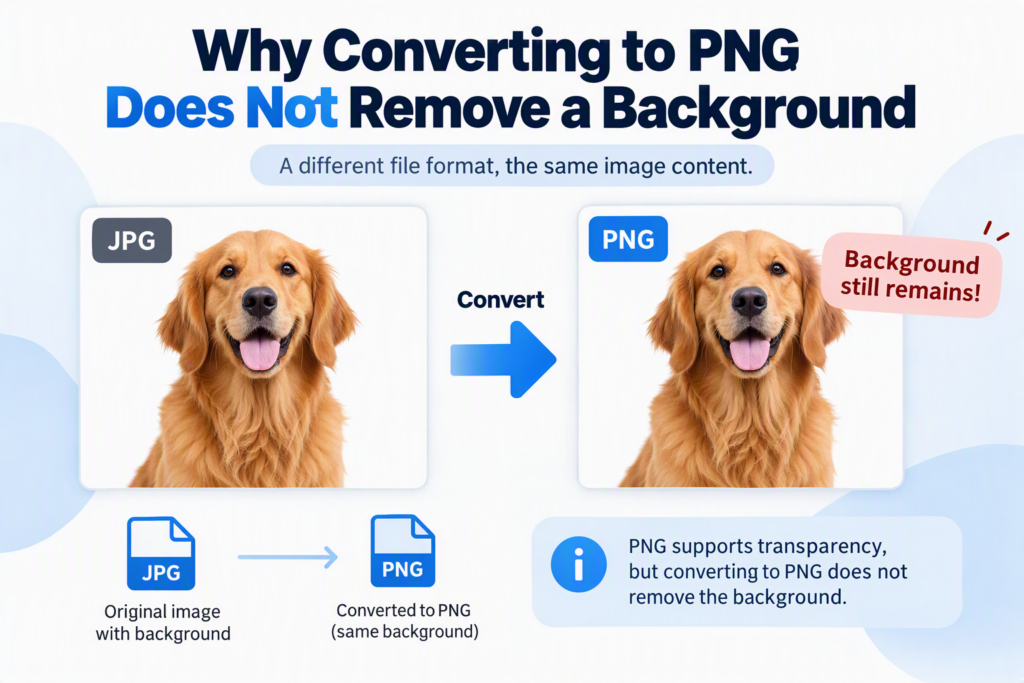
Many people assume that converting an image to PNG automatically removes its background. It does not. A PNG file can support transparency, but simply changing a JPG, JPEG, WEBP, or another image format into PNG will not erase the background. If the original image already contains a white, black, or colored background, that background will remain after conversion unless it is removed separately.
This misunderstanding often leads to confusion when users upload a photo, convert it to PNG, and discover that the unwanted background is still visible. Understanding the difference between image format conversion and background removal can save time and help you choose the right tool for the job.
PNG Supports Transparency, But It Does Not Create It
PNG (Portable Network Graphics) is a popular image format because it supports transparent backgrounds. Unlike JPEG files, PNG images can store transparency information through an alpha channel.
However, there is an important distinction:
- PNG can contain transparency
- PNG conversion does not generate transparency automatically
Think of PNG as a container. The container is capable of holding transparent pixels, but if your original image does not already have transparent areas, converting it to PNG will simply place the existing image inside a new PNG file.
For example:
| Original Image | Converted to PNG | Result |
|---|---|---|
| JPG with white background | PNG | White background remains |
| JPEG with blue background | PNG | Blue background remains |
| Image with transparency | PNG | Transparency preserved |
The format changes, but the image content stays the same.
The Most Common Misconception About PNG Files
People often search for terms like:
- Convert JPG to transparent PNG
- Remove white background by converting to PNG
- PNG background remover
- Convert image to PNG no background
The confusion comes from seeing millions of transparent images online that use the PNG format.
The reality is that those images underwent an additional process before becoming PNG files:
- The background was removed.
- Transparency was created.
- The image was saved as PNG.
The background removal happened first. The PNG format simply preserved that transparency.
What Happens During a Normal PNG Conversion?
When you use a standard image converter, the tool mainly changes the file format.
For example:
- JPEG → PNG
- WEBP → PNG
- BMP → PNG
- GIF → PNG
The converter copies the visual information from one format into another.
This process typically includes:
- Colors
- Shapes
- Text
- Objects
- Existing background
Nothing is automatically cut out or erased.
If your image contains a person standing in front of a solid white wall, converting the file to PNG simply creates a PNG version of that same picture with the white wall still visible.
Why Image Converters Are Different From Background Removers
A file converter and a background remover perform two completely different tasks.
Image Converter
An image converter changes:
- File format
- Compression method
- Image compatibility
It does not analyze image subjects or separate objects from backgrounds.
Background Remover
A background remover uses image processing or AI technology to:
- Detect the subject
- Separate foreground elements
- Remove unwanted background areas
- Create transparent pixels
After that process, the final image is usually saved as PNG so the transparent areas remain transparent.
This distinction is essential for understanding why conversion alone does not remove the background.
Understanding Transparency in Digital Images
Digital images are made of pixels.
Each pixel contains information about color. PNG images can also contain transparency information.
Transparency is often measured using an alpha channel:
- 0% opacity = fully transparent
- 50% opacity = partially transparent
- 100% opacity = fully visible
A standard JPG image does not support transparency.
When converting a JPG into PNG, there is no transparency data available to transfer. Therefore, every pixel remains visible, including the background.
The converter cannot reliably determine which pixels should become transparent because it does not know what part of the image you want removed.
Example: White Background vs Transparent Background
Consider a company logo.
Scenario 1: JPEG Logo
The logo has:
- Black text
- White rectangular background
When converted directly to PNG:
- Black text remains
- White background remains
Scenario 2: Background Removed First
The logo background is manually or automatically removed.
Then the file is saved as PNG.
Result:
- Black text remains
- Background becomes transparent
The second scenario creates the effect people expect from PNG images.
How to Actually Remove a Background
If your goal is a transparent image, you need a dedicated background removal process.
Option 1: AI Background Removal
Modern AI tools can identify:
- People
- Products
- Logos
- Objects
The background is removed automatically, and the result can be exported as a transparent PNG.
Option 2: Manual Editing
Image editing software can remove backgrounds manually using tools such as:
- Selection tools
- Magic wand tools
- Pen tools
- Layer masks
This approach provides greater control but requires more effort.
Option 3: Solid Color Removal
Some tools can remove single-color backgrounds such as:
- White
- Black
- Green screen backgrounds
The removed area is then replaced with transparency.
When PNG Is Still the Best Choice
Even though PNG conversion does not remove backgrounds, PNG remains one of the best image formats for many uses.
Logos
PNG files preserve sharp edges and transparency, making them ideal for:
- Business logos
- Brand graphics
- Website headers
Product Images
Transparent PNGs allow products to appear clean on different backgrounds.
Website Design
PNG images are commonly used for:
- Icons
- UI elements
- Buttons
- Graphics
Screenshots
PNG generally provides better text clarity than JPEG because it uses lossless compression.
Common Mistakes People Make
Assuming Format Equals Editing
Changing a file format does not edit the image content.
This is the most frequent misunderstanding.
Expecting Automatic Transparency
Transparency must be created intentionally.
It rarely appears automatically during format conversion.
Using JPEG Logos
Many users save logos as JPEG files and later discover the white background cannot simply disappear through conversion.
Ignoring the Original Image Structure
If the original image was flattened, background and subject pixels are merged together. A converter cannot separate them automatically.
PNG vs JPEG: Background Handling Comparison
| Feature | PNG | JPEG |
|---|---|---|
| Supports transparency | Yes | No |
| Lossless compression | Yes | No |
| Suitable for logos | Yes | Limited |
| Suitable for transparent graphics | Yes | No |
| Automatically removes backgrounds | No | No |
| Preserves transparent areas | Yes | No |
This table highlights an important fact: neither PNG nor JPEG automatically removes a background.
The difference is that PNG can preserve transparency once it has been created.
Using Online Conversion Tools Correctly
Online image converters are useful when you need to:
- Change file formats
- Improve compatibility
- Prepare images for websites
- Convert WEBP to PNG
- Convert JPG to PNG
Tools such as ImgConvert allow users to convert image formats quickly and easily. However, format conversion should not be confused with background removal.
If your goal is transparency, look specifically for a background-removal feature rather than a standard format converter.
You can also explore related guides on image optimization, format conversion, and file compatibility through resources available on ImgConvert to better understand when PNG, JPEG, WEBP, and other formats should be used.
For additional reading, you may find these topics useful:
- WEBP vs PNG: Which Image Format Should You Use?
- How Image Compression Affects Quality
- Best Image Formats for Websites and SEO
These related resources can help you choose the right format based on your specific project requirements.
Situations Where Converting to PNG Makes Sense
PNG conversion is still valuable even when transparency is not involved.
Use PNG when:
- You need lossless image quality.
- You want sharper screenshots.
- You are preparing graphics for editing.
- You need transparent support for future edits.
- Your design software works better with PNG files.
In these cases, conversion serves a practical purpose even if the background remains unchanged.
Why Software Cannot Guess What to Remove
A computer sees an image as a grid of colored pixels.
Imagine a photo containing:
- A person wearing a white shirt
- A white wall behind them
If the software simply removed all white pixels, part of the shirt would disappear along with the wall.
This is why background removal requires image analysis, masking, or AI subject detection.
Standard converters do not perform this level of processing. Their role is to change formats, not interpret image content.
FAQs
Does converting JPG to PNG make the background transparent?
No. Converting JPG to PNG only changes the file format. The existing background remains unless it is removed separately.
Why do many PNG images have transparent backgrounds?
Because their backgrounds were removed before being saved as PNG. PNG preserves transparency but does not create it automatically.
Can PNG files have white backgrounds?
Yes. PNG supports transparency, but it can also contain white, black, colored, or photographic backgrounds.
What tool should I use for a transparent PNG?
Use a background remover or image editor that can remove the background first and then export the result as PNG.
Is PNG always better than JPEG?
Not always. PNG is better for graphics, logos, screenshots, and transparent images. JPEG is often better for photographs because of its smaller file sizes.
Final Thoughts
Converting an image to PNG does not remove its background because format conversion and background removal are two separate processes. PNG supports transparency, but transparency must be created first through editing or background-removal software. Once the background is removed, saving the image as PNG preserves the transparent areas.
If you need a transparent image, start with background removal and then export the result as PNG. If you only need a different file format, a standard converter such as ImgConvert can handle the conversion while keeping the image content unchanged. Understanding this difference will help you choose the right tool and avoid the common misconception that PNG conversion alone can make a background disappear.