How to Use Drag and Drop for Image Conversion
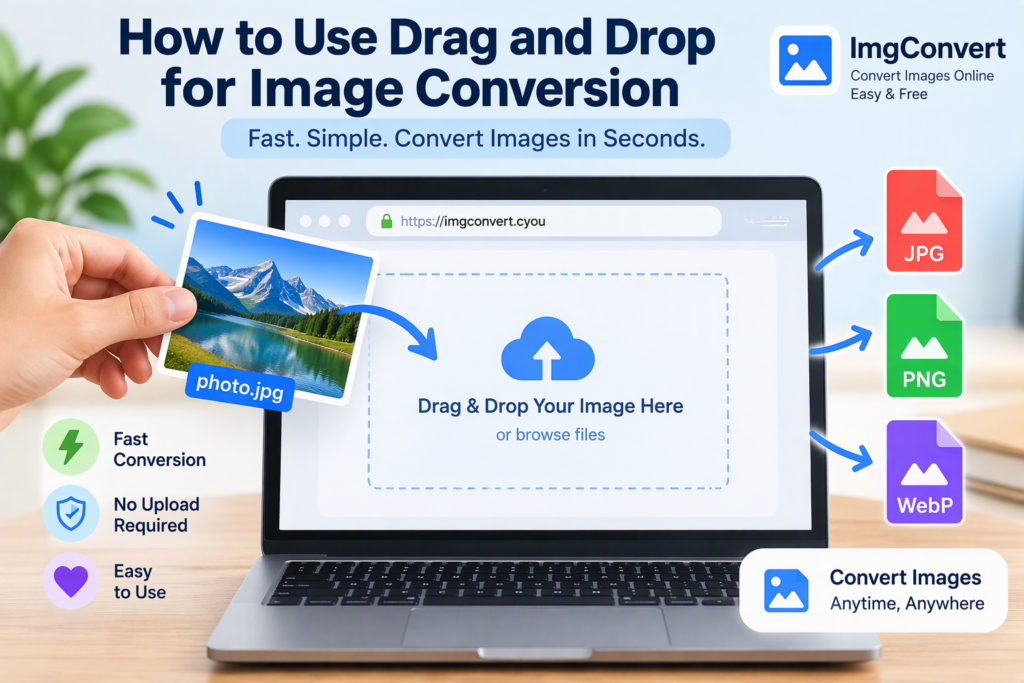
Need to convert an image quickly without dealing with complicated software? Drag-and-drop image conversion is one of the easiest methods available. Instead of browsing through folders and uploading files through multiple menus, you simply drag your image into a conversion tool, choose the output format, and download the converted file. On ImgConvert (https://imgconvert.cyou), this process works directly in your browser, making image conversion fast and convenient for everyday tasks. [imgconvert.cyou]
Whether you’re changing PNG to JPG, JPG to PNG, or converting images for web optimization, understanding how drag-and-drop conversion works can save time and streamline your workflow.
What Is Drag-and-Drop Image Conversion?
Drag-and-drop image conversion is a feature that allows users to move a file from their computer directly into a converter interface by clicking, holding, and dragging the file into a designated drop area.
Instead of:
- Opening a file browser
- Searching through folders
- Selecting the image manually
You can simply:
- Locate the image on your device
- Drag it into the converter window
- Let the tool process the file
This approach reduces clicks and makes image format conversion much faster, especially when working with multiple files throughout the day.
Why Use Drag and Drop Instead of Traditional Uploading?
While both methods achieve the same result, drag-and-drop offers several practical advantages.
| Feature | Drag and Drop | Traditional Upload |
|---|---|---|
| Speed | Faster | Slower |
| Number of Clicks | Fewer | More |
| User Experience | More intuitive | Less convenient |
| Workflow Efficiency | High | Moderate |
| Ease of Use | Excellent | Good |
For users who regularly edit photos, create website content, design graphics, or manage digital assets, these small time savings quickly add up.
How Drag-and-Drop Conversion Works
When you drag an image into a conversion tool, the browser reads the file and prepares it for processing.
According to the ImgConvert website, built-in conversions are performed within the browser, allowing users to convert PNG, JPG, and WebP images without uploading them to the converter’s server. [imgconvert.cyou]
The typical workflow looks like this:
Select Image
↓
Drag File
↓
Drop into Converter
↓
Choose Output Format
↓
Adjust Settings (Optional)
↓
Convert
↓
Download New Image
The process usually takes only a few seconds, depending on image size and device performance.
Step-by-Step: Using Drag and Drop on ImgConvert
If you’re using ImgConvert, follow these simple steps.
Step 1: Open the Desired Converter
Visit:
Choose the converter that matches your needs, such as:
- PNG to JPG
- JPG to PNG
- JPG to WebP
- WebP to JPG
The site provides dedicated tools for each conversion type. [imgconvert.cyou]
Step 2: Locate Your Image
Find the file on your computer.
Common locations include:
- Downloads
- Pictures
- Desktop
- Project folders
Make sure you know the source image format before converting.
Step 3: Drag the Image
Click and hold the image file.
Move the cursor over the converter window while continuing to hold the mouse button.
Step 4: Drop the File
Release the mouse button when the drop area highlights.
The converter will detect the image and prepare it for processing.
Step 5: Select Conversion Settings
Depending on the conversion type, you may see settings such as:
- Image quality
- Compression level
- Export format
- Download preferences
For example, when converting JPG to WebP, adjusting quality settings can help balance image clarity and file size.
Step 6: Start Conversion
Click the conversion button if required.
The tool will process your image and create a new downloadable file.
Step 7: Download the Converted Image
Save the converted file to your preferred folder.
Remember that conversion creates a new file while leaving the original image unchanged. [imgconvert.cyou]
Best Image Formats for Different Uses
Choosing the right format is just as important as converting the image.
JPG
JPG is commonly used for:
- Photographs
- Blog post images
- Social media pictures
- Product photos
Advantages:
- Smaller file sizes
- Broad compatibility
- Fast loading
Limitations:
- Lossy compression
- No transparency support
PNG
PNG works well for:
- Logos
- Icons
- Graphics
- Screenshots
Advantages:
- Transparency support
- Sharp details
- Better for graphic elements
Limitations:
- Larger file sizes
WebP
WebP is becoming increasingly popular for websites.
Advantages:
- Efficient compression
- Smaller file sizes
- Good image quality
Limitations:
- Some older software may have compatibility limitations
Google provides information about WebP and its compression technology at:
Common Reasons to Convert Images
People convert images for many different reasons.
Website Optimization
Large images can slow down page loading speed.
By converting to more efficient formats, website owners can improve performance and user experience.
For additional image optimization tips, see:
These guides provide useful insights into image quality and format selection. [imgconvert.cyou]
Social Media Publishing
Different platforms may compress images differently.
Converting images beforehand gives you more control over quality and file size.
Graphic Design
Designers often move between formats during editing workflows.
A project may start as:
- PNG for editing
- JPG for delivery
- WebP for web publishing
Email Attachments
Smaller images are easier and faster to send.
Converting large PNG files into JPG or WebP can significantly reduce attachment size.
Tips for Faster Drag-and-Drop Conversion
Organize Files First
Store images in clearly labeled folders.
This makes them easier to locate and drag into the converter.
Use Appropriate Formats
Don’t convert simply because another format exists.
Choose the format that suits your actual goal.
Check Quality Settings
Higher quality isn’t always necessary.
For web publishing, moderate quality settings often provide the best balance of clarity and file size.
Preview Before Downloading
Whenever a preview is available, review:
- Sharpness
- Colors
- Transparency
- Overall appearance
A quick inspection can prevent mistakes.
Keep the Original Image
Always maintain a backup of the source file.
ImgConvert’s conversion process creates a new file rather than replacing the original, making it easier to keep both versions. [imgconvert.cyou]
Common Mistakes to Avoid
Converting JPG to PNG Expecting Better Quality
A frequent misconception is that changing a JPG into PNG automatically improves image quality.
It does not.
Once compression artifacts exist in the original JPG, converting it into PNG cannot restore lost information.
Forgetting About Transparency
PNG supports transparency.
JPG does not.
If your image uses a transparent background, converting to JPG will remove that transparency. ImgConvert also notes that JPG does not support transparent backgrounds. [imgconvert.cyou]
Ignoring File Size
Larger files aren’t always better.
A properly optimized WebP image can look excellent while requiring significantly less storage space.
Using the Wrong Format for the Task
Each format has strengths and weaknesses.
Selecting the right format beforehand eliminates unnecessary conversions later.
Drag-and-Drop Conversion on Mobile Devices
Many users assume drag-and-drop only works on desktop computers.
While desktop systems generally provide the smoothest experience, modern mobile devices often support file selection and image conversion directly through browser-based tools.
According to ImgConvert, users can use the file picker on phones and tablets when converting images. [imgconvert.cyou]
This means you can:
- Convert screenshots
- Optimize photos
- Change image formats
- Prepare images for websites
without installing additional software.
Browser-Based Conversion vs Desktop Software
| Factor | Browser Tool | Desktop Software |
|---|---|---|
| Installation | Not required | Required |
| Setup Time | Minimal | Longer |
| Accessibility | Anywhere | Device-specific |
| Updates | Automatic | Manual |
| Ease of Use | Simple | Often more complex |
For everyday image conversion tasks, browser-based tools are often sufficient.
Professional editing projects may still require dedicated image editors, but many users find browser converters faster for routine work.
Security and Privacy Considerations
Whenever you use an image converter, it’s important to understand how files are processed.
The ImgConvert homepage states that built-in conversions use your browser and do not upload images to the converter’s server. [imgconvert.cyou]
This approach may provide privacy benefits because image processing occurs locally rather than requiring server-side uploads.
For sensitive business documents, personal images, or confidential graphics, always review the tool’s privacy policy before uploading or processing files online.
FAQs
Can I drag multiple images at once?
This depends on the specific converter’s capabilities. Check the tool’s documentation or interface requirements before attempting batch conversions.
Does converting to PNG improve image quality?
No. Converting a JPG to PNG does not restore details already lost through JPG compression.
Will converting PNG to JPG remove transparency?
Yes. JPG files do not support transparent backgrounds, so transparency will be lost during conversion. [imgconvert.cyou]
Is drag-and-drop faster than manual uploads?
For most users, yes. Drag-and-drop eliminates several clicks and simplifies file selection.
Can I use drag-and-drop conversion on a laptop?
Yes. Drag-and-drop functionality works particularly well on Windows, macOS, and many Linux desktop environments.
Final Thoughts
Drag-and-drop image conversion is one of the simplest ways to change image formats without unnecessary steps. Whether you’re preparing images for a website, reducing file size for email attachments, or converting graphics for design projects, the process requires only a few seconds.
If you need a browser-based solution, ImgConvert provides tools for converting PNG, JPG, and WebP files directly within your browser while keeping the original image intact. Start with the format that best matches your goal, review the output carefully, and keep a backup of your original image for the best results.