How to Convert Images on a Laptop or Desktop
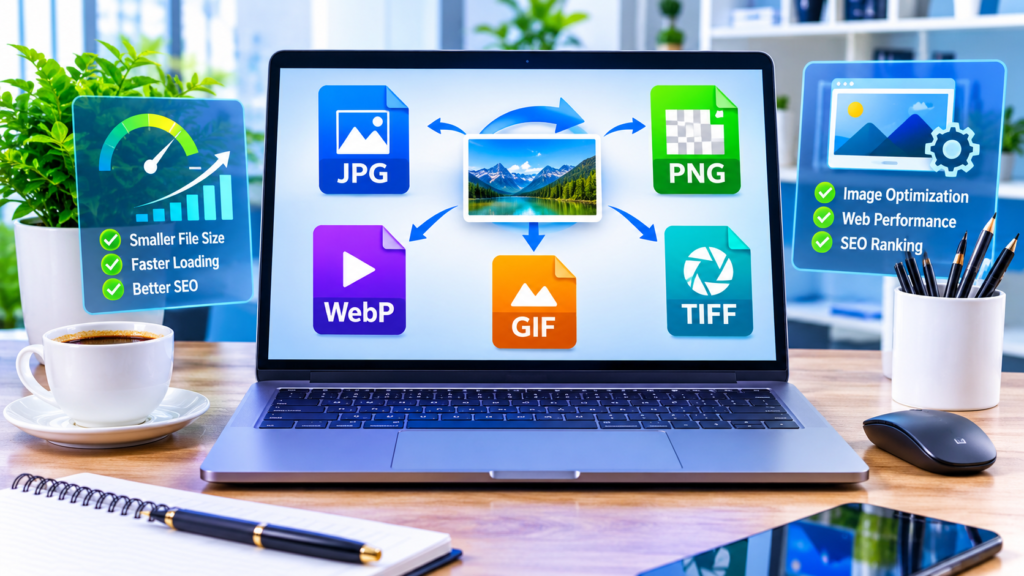
Need to convert an image from JPG to PNG, WebP to JPG, or another format? On a laptop or desktop, image conversion is straightforward with the right tool. Whether you’re preparing website images, reducing file sizes, maintaining transparency, or meeting upload requirements, an online image converter like ImgConvert can help you convert files quickly without installing software.
If you regularly work with digital images for blogging, design, business, education, or social media, understanding image conversion can save time and improve image quality. This guide explains everything you need to know about converting images on Windows, macOS, and other desktop systems.
What Does Image Conversion Mean?
Image conversion is the process of changing an image from one file format to another. For example:
- JPG to PNG
- PNG to JPG
- WebP to JPG
- JPG to WebP
- BMP to PNG
- TIFF to JPG
Each image format serves a different purpose. Converting between formats allows you to optimize files for specific uses such as websites, printing, presentations, or social media.
Common Image Formats
| Format | Best For | Advantages |
|---|---|---|
| JPG/JPEG | Photos | Small file size, widely supported |
| PNG | Graphics and transparent images | Supports transparency, high quality |
| WebP | Websites | Excellent compression and quality |
| GIF | Simple animations | Supports animation |
| BMP | Raw image storage | High quality but large file size |
| TIFF | Professional printing | Excellent image quality |
Understanding these formats helps you choose the best option during conversion.
Why Convert Images on a Laptop or Desktop?
People convert images for many reasons:
Reduce File Size
Large image files can slow websites and use unnecessary storage space. Converting JPG files to WebP can significantly reduce file size while maintaining visual quality.
Improve Website Performance
Website owners often convert images into modern formats such as WebP to improve page loading times and user experience.
If you run a website, optimizing images is one of the easiest ways to improve performance alongside proper image SEO and compression strategies.
Preserve Transparency
PNG files support transparent backgrounds, while JPG files do not. If you need logos or graphics with transparent areas, converting to PNG is often necessary.
Meet Upload Requirements
Many websites, online forms, and applications only accept specific image formats. Conversion ensures compatibility.
Simplify Editing
Some design tools work better with certain file types. Converting images can make editing easier and more efficient.
How to Convert Images Using ImgConvert
One of the easiest methods is using ImgConvert at:
The platform allows users to upload images and convert them into different formats directly through a web browser.
Step 1: Visit the Website
Open your preferred browser on your laptop or desktop and go to:
Step 2: Upload Your Image
Select the image you want to convert from your computer.
Supported image types may include:
- JPG
- JPEG
- PNG
- WebP
- BMP
- GIF
- TIFF
Step 3: Choose the Output Format
Select the format you want your image converted into.
Examples:
- Convert PNG to JPG
- Convert JPG to WebP
- Convert WebP to PNG
Step 4: Start the Conversion
Click the conversion button and wait for processing to complete.
Step 5: Download the Converted Image
Once the conversion finishes, download the new file to your desktop or preferred folder.
The entire process typically takes only a few moments, depending on image size and internet speed.
Converting Images on Windows Without Extra Software
Windows includes built-in tools that can help with basic image handling.
Using Microsoft Paint
Paint supports saving images in different formats.
Steps:
- Open the image in Paint.
- Click File.
- Select Save As.
- Choose a new image format.
- Save the file.
Supported formats generally include:
- PNG
- JPG
- BMP
- GIF
This method works well for simple conversions but lacks advanced optimization features.
Using Photos App
The Photos application can open many image formats and allows you to save edited copies.
However, for bulk conversions or specialized formats such as WebP, dedicated conversion tools are usually more convenient.
Converting Images on macOS
Mac users can perform image conversions using Preview.
Using Preview
- Open the image in Preview.
- Click File.
- Choose Export.
- Select the desired format.
- Save the image.
Preview supports several common formats and is ideal for everyday conversions.
For larger workloads or modern web image formats, online converters may provide additional flexibility.
JPG vs PNG: Which Format Should You Choose?
Many people wonder whether JPG or PNG is the better option.
Choose JPG When:
- Working with photographs
- Reducing storage requirements
- Uploading images online
- Sharing images through email
Choose PNG When:
- Preserving transparency
- Maintaining sharp graphics
- Creating logos
- Using screenshots
Quick Comparison
| Feature | JPG | PNG |
|---|---|---|
| Transparency | No | Yes |
| File Size | Smaller | Larger |
| Photo Quality | Excellent | Excellent |
| Graphic Quality | Good | Better |
| Web Use | Excellent | Excellent |
Your decision should depend on the image type and intended use.
Why WebP Is Becoming More Popular
WebP has become a preferred image format for many websites because it offers:
- Smaller file sizes
- High visual quality
- Faster page loading
- Better performance on mobile devices
For bloggers and website owners, converting images to WebP can improve user experience and reduce bandwidth usage.
If you’re optimizing your website, you may also benefit from learning about image compression, alt text optimization, and technical SEO strategies that improve page performance.
Converting Multiple Images at Once
Bulk image conversion is useful when dealing with:
- Website image libraries
- Product photos
- Photography collections
- Marketing assets
Instead of converting files individually, batch processing allows multiple images to be converted simultaneously.
Advantages include:
- Faster workflow
- Consistent formatting
- Reduced manual effort
- Easier content management
For content creators handling dozens or hundreds of images, batch conversion can save substantial time.
Common Mistakes to Avoid When Converting Images
Converting Repeatedly
Every conversion can potentially affect image quality, especially when working with lossy formats such as JPG.
Try to keep an original copy of your images whenever possible.
Choosing the Wrong Format
Not all formats serve the same purpose.
A logo saved as a JPG may appear blurry or lose transparency, while a large PNG photo may consume unnecessary storage space.
Ignoring File Size
High-quality images are important, but excessively large files can slow websites and increase loading times.
Balance quality and performance.
Removing Transparency Accidentally
When converting PNG files to JPG, transparency is lost and typically replaced with a solid background color.
Always verify the output if transparency is important.
Over compressing Images
Extreme compression can create visible artifacts and reduce image quality.
Use settings that maintain a good balance between quality and file size.
Best Practices for Website Images
If you’re converting images for a website, follow these recommendations:
Use the Correct Dimensions
Resize images before uploading whenever possible.
Avoid uploading extremely large files that will be displayed at small dimensions.
Select Modern Formats
WebP is often an excellent choice for website performance.
Optimize Alt Text
Alt text improves accessibility and helps search engines understand image content.
Compress Before Uploading
Image optimization can reduce loading times significantly.
Organize Files Properly
Use descriptive filenames such as:
- laptop-image-conversion-guide.webp
- website-image-optimization.png
Instead of:
- image123.jpg
- photo1.png
This improves organization and can support image SEO efforts.
When to Use Online Image Converters
Online conversion tools are particularly useful when:
- You don’t want to install software.
- You’re using a work or shared computer.
- You need quick access from any device.
- You want fast results.
- You occasionally convert images.
Services such as ImgConvert make the process simple by allowing uploads and conversions directly through a browser.
Security Considerations
Before uploading images to any online service:
- Avoid uploading confidential documents.
- Review the site’s privacy policies if handling sensitive content.
- Delete unnecessary copies after conversion.
- Use trusted services with secure connections.
For personal photos, website graphics, and general business documents, image conversion is typically straightforward and low risk when using reputable tools.
Frequently Asked Questions
Can I convert PNG to JPG without losing quality?
Some quality differences may occur because JPG uses lossy compression. For photographs, the difference is often minimal when high-quality settings are used.
What is the best image format for websites?
WebP is often a strong option because it balances image quality and file size effectively. JPG and PNG also remain widely used depending on the image type.
Does converting an image change its dimensions?
Not necessarily. Conversion changes the file format, while resizing changes the image dimensions. The two processes are separate.
Is online image conversion free?
Many online converters offer free image conversion for common formats. Available features depend on the specific service.
Which format supports transparent backgrounds?
PNG supports transparency and is commonly used for logos, icons, and graphics that require transparent backgrounds.
Final Thoughts
Converting images on a laptop or desktop is a simple but important skill for website owners, bloggers, students, designers, and everyday computer users. Whether you need a smaller file size, a transparent background, or a format compatible with a specific platform, selecting the right image format can improve both quality and performance.
For quick and convenient conversions without installing additional software, ImgConvert offers an easy way to transform images into the format you need. Start by choosing the appropriate output format, keep original copies of important files, and optimize images based on how they will be used. The result is better-looking images, faster-loading websites, and a more efficient workflow.