Why Image Converters Have File-Size and Pixel Limits
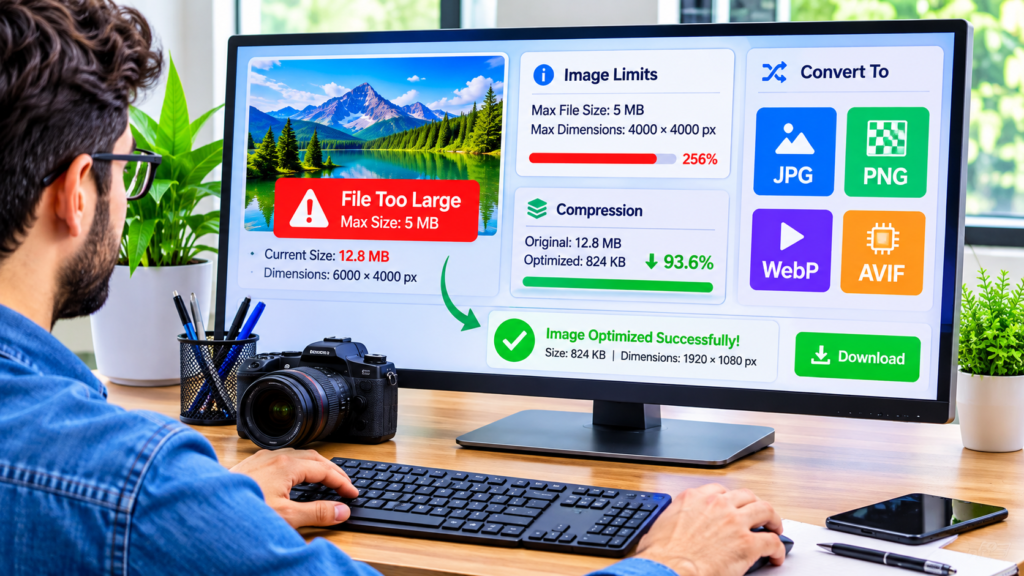
If you’ve ever tried to convert an image and received a message saying the file is too large or exceeds the maximum dimensions, you’re not alone. Image converters often enforce file-size and pixel limits to maintain performance, prevent server overload, reduce processing costs, and deliver faster results for everyone. These limits are not arbitrary. They help ensure that image conversion tools remain stable, secure, and efficient.
Whether you’re converting JPG to PNG, WebP to JPG, or resizing photos for web use, understanding these limits can save time and help you work with images more effectively.
Understanding File Size vs. Pixel Dimensions
Many people assume file size and pixel dimensions are the same thing, but they measure different aspects of an image.
File Size
File size refers to the amount of storage space an image occupies. It is usually measured in:
- Kilobytes (KB)
- Megabytes (MB)
- Gigabytes (GB)
For example:
| Image Type | Typical File Size |
|---|---|
| Small web image | 100 KB – 500 KB |
| Smartphone photo | 2 MB – 10 MB |
| Professional camera photo | 20 MB – 100 MB+ |
Pixel Dimensions
Pixels determine the image’s width and height.
Examples:
- 800 × 600 pixels
- 1920 × 1080 pixels
- 6000 × 4000 pixels
A photo with 6000 × 4000 pixels contains 24 million pixels. Processing that many pixels requires significantly more memory and computing power than processing a smaller image.
An image can have:
- Large dimensions but a relatively small file size due to compression.
- Small dimensions but a larger file size if stored in a lossless format.
Because both factors affect processing requirements, image conversion tools often limit each separately.
Why Online Image Converters Set Limits
Image conversion happens behind the scenes on servers or within browser-based applications. Every image consumes resources during processing.
Without limits, a few extremely large uploads could slow down service for everyone.
Protecting Server Performance
When an image converter processes a file, it must:
- Upload the image.
- Decode the file format.
- Load the image into memory.
- Convert the image.
- Create and save the output file.
- Deliver the converted image.
A large image requires far more memory and processing time than a small image.
For example, a high-resolution image containing tens of millions of pixels may require hundreds of megabytes of memory during processing, even if the original file size appears relatively small.
Limiting uploads ensures stable performance for all users.
Preventing Browser Crashes
Many modern image converters process files directly in your browser.
When a browser attempts to load an extremely large image:
- Memory usage increases dramatically.
- Processing takes longer.
- Mobile devices may become unresponsive.
- Tabs may crash unexpectedly.
Pixel limits help avoid these issues and improve reliability across different devices.
Controlling Infrastructure Costs
Every uploaded image consumes:
- CPU resources
- RAM
- Storage space
- Network bandwidth
For free online tools, unrestricted uploads could create substantial operating costs.
Reasonable file-size limits allow services to provide fast image conversion without excessive resource consumption.
The Technical Challenge of Large Images
Large images present unique technical problems that most users never see.
Memory Requirements Grow Rapidly
An image isn’t processed in its compressed form.
Instead, it is expanded into raw pixel data during conversion.
Consider a 6000 × 4000 image:
- Total pixels: 24 million
- 24 million pixels × 4 bytes (RGBA color data)
- Approximately 96 MB in memory
Now imagine processing several files simultaneously.
Memory requirements increase quickly, which is why many image conversion systems establish limits.
Some Formats Require Extra Processing
Different image formats use different compression methods.
Examples include:
- JPG
- PNG
- WebP
- AVIF
- TIFF
- BMP
Certain formats require:
- More decoding time
- Additional memory allocation
- Complex compression algorithms
When a converter supports multiple formats, maintaining limits helps ensure consistent performance regardless of the source or destination format.
Common File-Size Limits You May Encounter
Most online converters establish practical upload limits.
Examples might include:
| Tool Type | Typical Limit |
|---|---|
| Free browser converter | 5 MB – 25 MB |
| Advanced online converter | 50 MB – 100 MB |
| Desktop software | Limited mostly by hardware |
Actual limits vary depending on the service.
For example, tools such as ImgConvert allow users to convert images directly through a web interface while maintaining limits that help ensure dependable performance and fast processing for all visitors.
If you regularly work with large files, reducing image size before conversion can significantly improve speed and compatibility.
Why Pixel Limits Matter More Than File Size
Many users focus solely on megabytes, but pixel count often creates the bigger challenge.
Consider these examples:
| Image | File Size | Dimensions |
|---|---|---|
| Photo A | 4 MB | 2000 × 1500 |
| Photo B | 4 MB | 8000 × 6000 |
Although both files are 4 MB, Photo B contains far more pixels.
The converter must process:
- Photo A: 3 million pixels
- Photo B: 48 million pixels
Photo B demands substantially more memory and computational resources.
This is why some converters reject extremely large dimensions even when the file size appears acceptable.
Security Benefits of Upload Limits
File-size and dimension restrictions also improve security.
Protection Against Abuse
Without restrictions, attackers could attempt to upload:
- Extremely large files
- Corrupted image files
- Resource-intensive images
These uploads could overwhelm processing systems and disrupt service.
Reasonable limits act as a safeguard against misuse.
Reduced Risk of Denial-of-Service Attacks
Image-processing operations require significant computing resources.
Large uploads can be used to consume memory and processing time unnecessarily.
File restrictions help reduce the effectiveness of such attacks and improve overall service stability.
How Compression Affects Conversion Limits
Compression determines how much data an image stores.
Lossy Compression
Formats like JPG reduce file size by removing some image data.
Benefits:
- Smaller files
- Faster uploads
- Faster conversions
Trade-off:
- Some image quality loss
Lossless Compression
Formats like PNG preserve all image data.
Benefits:
- Higher quality
- Better for graphics and screenshots
Trade-off:
- Larger file sizes
A PNG image may reach conversion limits faster than a JPG with similar dimensions because it contains more data.
How to Work Around File-Size Limits
If your image exceeds a converter’s limits, several solutions can help.
Resize the Image
Reducing image dimensions often creates the largest improvement.
For example:
- 8000 × 6000 → 4000 × 3000
This reduces total pixels dramatically while still maintaining high quality for most uses.
Compress Before Converting
Compression tools reduce file size while preserving acceptable image quality.
Compression is especially useful for:
- Website images
- Social media graphics
- Blog illustrations
Convert in Smaller Batches
Instead of uploading dozens of large images simultaneously:
- Divide uploads into smaller groups.
- Process files incrementally.
This often results in faster, more reliable conversions.
Use the Right Format
Choosing an efficient image format may reduce upload size significantly.
For example:
- WebP often delivers smaller files than JPG.
- AVIF can provide even better compression in many situations.
- PNG remains useful for transparency and graphics.
A Practical Example
Imagine you’re preparing product images for an online store.
Original image:
- Dimensions: 7000 × 5000 pixels
- Size: 22 MB
A conversion tool might reject the upload because of either:
- File size
- Pixel dimensions
A better workflow would be:
- Resize to 2500 × 1800 pixels.
- Compress moderately.
- Convert to WebP.
- Upload the optimized file.
Final result:
- Much smaller file size
- Faster website loading
- Easier conversion process
- Better user experience
For website owners, image optimization before conversion is often more effective than simply looking for tools with higher limits.
Common Misconceptions About Image Converter Limits
“The Limit Exists Only to Force Paid Upgrades”
While some services offer premium plans with larger limits, technical constraints are real.
Processing huge images requires:
- More memory
- More CPU power
- Longer processing time
Higher limits genuinely increase operating costs.
“A Powerful Computer Eliminates All Limits”
Even if you’re using a fast computer, browser-based converters still depend on available browser memory and system resources.
Large files can overwhelm powerful devices as well.
“Only File Size Matters”
Pixel dimensions are often the more significant factor.
A highly compressed image can still contain tens of millions of pixels, creating substantial processing requirements.
Optimizing Images Before Conversion
A quick optimization checklist can prevent most upload-limit issues.
Image Preparation Checklist
✅ Remove unnecessary metadata
✅ Resize images to practical dimensions
✅ Use JPG for photographs when transparency isn’t needed
✅ Use PNG for graphics and transparent backgrounds
✅ Consider WebP for modern web usage
✅ Compress over-sized images before conversion
✅ Upload files individually if batch processing fails
These simple steps often improve conversion success rates and website performance.
For those managing websites, image optimization and format conversion go hand in hand. If you’re regularly converting images, tools like ImgConvert can simplify the process while helping you create files better suited for web publishing. You can also explore resources related to image optimization and format conversion at https://imgconvert.cyou/ to better understand how different formats affect quality, size, and performance.
FAQs
Why do image converters reject large files?
Large files require more memory, processing power, storage, and bandwidth. Limits help maintain speed, stability, and reliability.
What’s more important: file size or image dimensions?
Both matter, but pixel dimensions often create greater processing demands because converters must work with every pixel in the image.
Can compression reduce conversion errors?
Yes. Compressing an image lowers file size and can improve upload and conversion success rates without significantly affecting quality.
Why can a small file still exceed pixel limits?
Strong compression can create a small file with extremely large dimensions. Even though storage requirements are low, processing requirements remain high.
Should I resize images before converting them?
In many cases, yes. Reducing unnecessary dimensions can speed up conversion, reduce file size, and improve compatibility with online tools.
Final Thoughts
File-size and pixel limits exist for practical reasons. They help image converters remain fast, secure, and affordable while providing a better experience for all users. Understanding the difference between file size and pixel dimensions makes it easier to troubleshoot upload problems, optimize images, and choose the right conversion workflow.
Before looking for a converter with higher limits, check whether the image can be resized, compressed, or reformatted. A smaller, optimized file is often easier to convert, easier to share, and better suited for modern websites and applications.