Static vs Animated WebP: What Is the Difference?
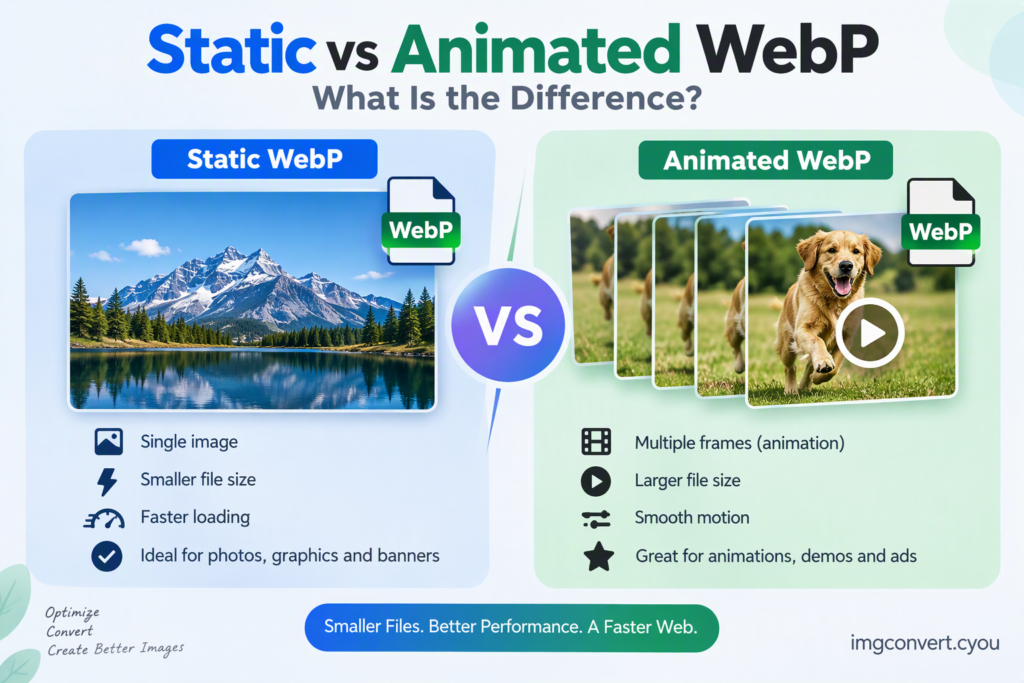
If you’re choosing between static and animated WebP images, the short answer is simple: static WebP displays a single image, while animated WebP contains multiple frames that create motion, similar to a GIF. Both use the WebP format developed by Google, but they serve different purposes depending on your website’s design, performance, and user experience goals.
Understanding the difference can help you optimize images, improve page speed, and choose the right format for your content. Whether you’re running a blog, eCommerce store, or portfolio site, selecting the correct image type has a direct impact on loading times and user engagement.
What Is WebP?
WebP is a modern image format created by Google that provides efficient compression for web images. It supports both lossy and lossless compression, allowing websites to display high-quality images with smaller file sizes than older formats such as JPEG, PNG, and GIF.
According to Google Developers, WebP images can be significantly smaller than comparable JPEG and PNG files while maintaining visual quality.
Source: https://developers.google.com/speed/webp
The format also supports:
- Transparency (alpha channel)
- Animation
- Lossy compression
- Lossless compression
- Metadata support
These capabilities make WebP one of the most versatile image formats available for modern websites.
What Is a Static WebP Image?
A static WebP image consists of a single frame, just like a JPEG or PNG file. When viewed, the image remains unchanged.
Examples of static WebP images include:
- Blog featured images
- Product photos
- Website banners
- Portfolio images
- Logos with transparency
Because only one image frame is stored, static WebP files are usually smaller than animated versions.
Benefits of Static WebP
Faster Loading Times
Static images generally have smaller file sizes, helping web-pages load more quickly.
Better SEO Performance
Page speed is a ranking factor and contributes to better user experience. Smaller images reduce bandwidth usage and improve performance metrics.
High Image Quality
WebP can maintain excellent visual quality while reducing file size compared to JPEG and PNG images.
Transparency Support
Unlike JPEG, static WebP supports transparent backgrounds similar to PNG but often with smaller file sizes.
What Is an Animated WebP Image?
Animated WebP images contain multiple frames displayed sequentially to create motion. Think of them as a modern alternative to GIF animations.
Instead of using the older GIF format, animated WebP delivers smoother animation with better compression and image quality.
Common uses include:
- Animated banners
- Product demonstrations
- UI animations
- Social media graphics
- Tutorial illustrations
Benefits of Animated WebP
Smaller Than GIF Files
One of the biggest advantages is efficiency. Google’s documentation notes that animated WebP can be significantly smaller than equivalent GIF animations.
Source: https://developers.google.com/speed/webp
Better Visual Quality
Animated WebP supports richer colors and better compression compared to traditional GIF files.
Transparency Support
Like static WebP, animated WebP supports transparency, allowing more modern design effects.
Improved User Engagement
Motion naturally attracts attention, making animated content useful for showcasing products or highlighting important actions.
Static WebP vs Animated WebP: Side-by-Side Comparison
| Feature | Static WebP | Animated WebP |
|---|---|---|
| Frames | Single frame | Multiple frames |
| Motion | No | Yes |
| File Size | Smaller | Larger |
| Loading Speed | Faster | Slightly slower |
| Transparency | Yes | Yes |
| Typical Use | Photos, graphics, banners | Animations, demos, ads |
| Alternative Format | JPEG, PNG | GIF |
| SEO Impact | Excellent | Good when optimized |
When Should You Use Static WebP?
Static WebP is usually the best choice when displaying standard website images.
Use Static WebP For:
- Blog post images
- Product galleries
- Featured images
- Logos
- Team photos
- Info-graphics
- Background images
Most website images do not require movement, making static WebP the more practical option.
For example, if you’re publishing articles regularly, converting featured images to WebP can significantly reduce page weight.
If you need a quick conversion tool, you can use ImgConvert to convert images into optimized WebP format online:
You may also find these guides helpful:
- https://imgconvert.cyou/png-to-webp/
- https://imgconvert.cyou/jpg-to-webp/
- https://imgconvert.cyou/image-compressor/
These tools help reduce image sizes while maintaining quality for better website performance.
When Should You Use Animated WebP?
Animated WebP is ideal when motion adds value to the user experience.
Use Animated WebP For:
- Product previews
- Promotional banners
- Step-by-step tutorials
- App demonstrations
- UI showcase animations
- Loading indicators
For example, an eCommerce store might use animated WebP to demonstrate how a product works without requiring visitors to play a video.
Why Animated WebP Is Replacing GIF
GIF dominated web animation for decades, but its limitations have become increasingly obvious.
GIF Limitations
- Large file sizes
- Limited color range
- Lower image quality
- Poor compression efficiency
Animated WebP Advantages
- Better compression
- Smaller files
- Higher quality visuals
- Transparency support
- Reduced bandwidth usage
As a result, many modern websites now replace GIFs with animated WebP files whenever browser support allows.
Does WebP Work in Modern Browsers?
Yes. WebP enjoys widespread support across modern browsers, including:
- Google Chrome
- Microsoft Edge
- Firefox
- Safari
- Opera
Browser support has improved significantly over recent years, making WebP a practical choice for most websites.
Source: https://caniuse.com/webp
If compatibility with older browsers is a concern, you can still provide fallback JPEG or PNG versions.
File Size Comparison Example
Imagine you have a high-quality image that exists in several formats:
| Format | Approximate Size |
|---|---|
| PNG | 1.8 MB |
| JPEG | 800 KB |
| Static WebP | 500 KB |
| GIF Animation | 5 MB |
| Animated WebP | 2 MB |
Actual sizes vary depending on image complexity, quality settings, and dimensions, but WebP often achieves substantial reductions compared to older formats.
Source: https://developers.google.com/speed/webp
How to Convert Images to Static WebP
Converting images is straightforward.
Step 1: Upload Your Image
Choose a JPG, PNG, BMP, TIFF, or other supported image format.
Step 2: Select WebP Output
Choose WebP as the target format.
Step 3: Adjust Quality Settings
Most converters allow you to balance quality and compression.
Step 4: Download the Converted File
Save the optimized WebP image and upload it to your website.
You can use the free WebP conversion tools available at:
Related guides:
- https://imgconvert.cyou/webp-to-jpg/
- https://imgconvert.cyou/webp-to-png/
- https://imgconvert.cyou/image-resizer/
Common Mistakes When Using WebP
Using Animation When It Isn’t Needed
Animations increase file size. If motion adds no value, a static image is usually the better choice.
Over-compressing Images
Aggressive compression settings may create visible artifacts and reduce image quality.
Ignoring Mobile Users
Even efficient animations can affect performance on slower mobile connections.
Not Testing Image Quality
Always compare the converted file against the original before publishing.
Uploading Large Dimensions
Compression helps, but over sized images still consume unnecessary resources. Resize images appropriately before publishing.
Static and Animated WebP SEO Considerations
From an SEO perspective, both formats can be beneficial when optimized correctly.
Static WebP Advantages
- Faster page loading
- Reduced bandwidth usage
- Improved Core Web Vitals
- Better user experience
Animated WebP Considerations
- More engaging visuals
- Can replace heavy GIFs
- Must remain reasonably sized
The best approach is choosing the file type that serves a genuine purpose while maintaining fast loading speeds.
For additional image optimization, consider combining WebP conversions with:
- Image compression
- Proper image dimensions
- Lazy loading
- Responsive image delivery
You can explore optimization resources at:
- https://imgconvert.cyou/image-compressor/
- https://imgconvert.cyou/image-resizer/
- https://imgconvert.cyou/
Frequently Asked Questions
Is animated WebP better than GIF?
In most cases, yes. Animated WebP typically produces smaller files and higher image quality compared to GIF animations while supporting transparency.
Can static WebP replace JPEG?
For many websites, yes. Static WebP often provides similar visual quality with smaller file sizes.
Does WebP support transparency?
Yes. Both static and animated WebP support transparent backgrounds.
Are animated WebP files larger than static WebP files?
Usually. Animated WebP contains multiple frames, which generally results in larger file sizes than single-frame static images.
Should every image be converted to WebP?
Not necessarily, but WebP is often an excellent choice for web performance. Testing image quality and compatibility with your workflow is always recommended.
Final Thoughts
The difference between static and animated WebP comes down to one thing: motion. Static WebP displays a single image and is typically the best option for photos, blog images, product listings, and general website graphics. Animated WebP contains multiple frames and works well for demonstrations, banners, and visual storytelling.
For most websites, static WebP will be used far more frequently because it delivers excellent compression and fast loading times. When animation is necessary, animated WebP offers a modern, efficient alternative to GIF.
If you’re optimizing images for speed, quality, and SEO, converting your files through tools like ImgConvert and choosing the appropriate WebP format can help create a faster, more user-friendly website.