What Happens to Transparency When You Convert PNG to JPG?
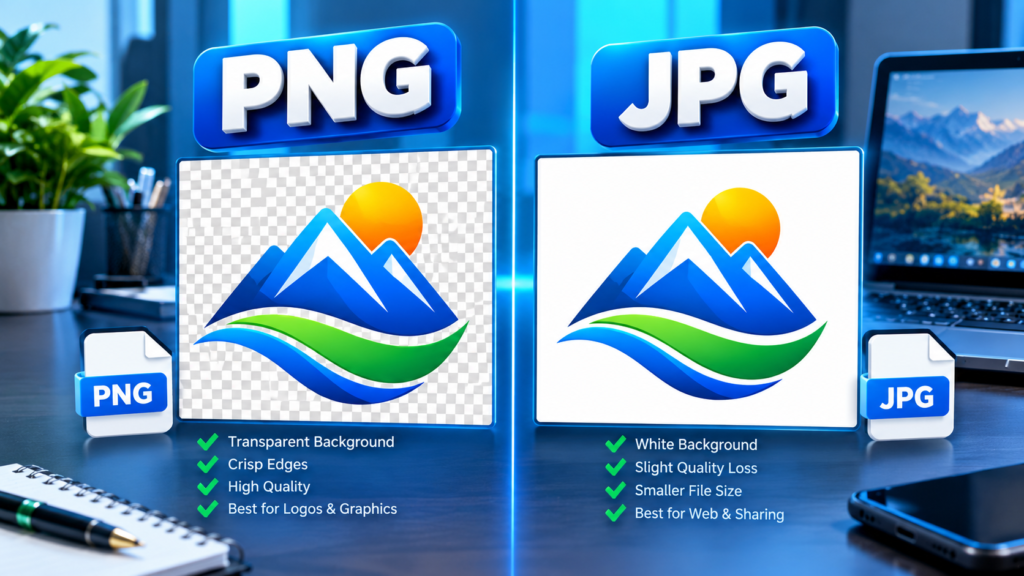
When you convert a PNG image with transparency to JPG, the transparency is lost. JPG (or JPEG) files do not support transparent backgrounds, so any transparent areas in the original PNG must be replaced with a solid color, usually white, black, or another background chosen by the software. If you need to preserve transparency, PNG remains the better format.
Understanding what happens during this conversion can help you avoid unwanted visual results, especially for logos, graphics, product images, and web design assets.
Understanding PNG Transparency
PNG, which stands for Portable Network Graphics, is a popular image format known for its support for transparency and high-quality image storage.
Unlike many other image formats, PNG files can store an alpha channel. The alpha channel controls how transparent a pixel is, allowing for:
- Fully transparent pixels
- Partially transparent pixels
- Fully opaque pixels
This capability makes PNG ideal for:
- Company logos
- Website graphics
- Icons
- Watermarks
- Stickers and overlays
- Images with irregular shapes
For example, a logo saved as a PNG can appear cleanly on different colored backgrounds because the area surrounding the logo is transparent rather than filled with a solid color.
Why JPG Cannot Keep Transparency
JPEG was designed primarily for photographs and continuous-tone images. Its goal is efficient image compression rather than advanced transparency features.
A JPG file can store:
- Color information
- Brightness information
- Compression data
However, it cannot store alpha channel information. As a result, transparency simply has no place in the JPEG file structure.
When image editing software converts a PNG to JPG, it must flatten the image by replacing transparent pixels with actual colors.
In simple terms:
| Feature | PNG | JPG |
|---|---|---|
| Transparency support | Yes | No |
| Alpha channel | Yes | No |
| Lossless compression | Yes | No |
| Ideal for logos | Yes | Usually No |
| Ideal for photographs | Good | Excellent |
| File size | Larger | Smaller |
The lack of transparency support is a limitation of the JPEG format itself, not a problem with the conversion tool.
What Transparent Areas Become After Conversion
Since JPG cannot store transparency, the transparent portions of the original PNG must be converted into visible pixels.
The result depends on how the conversion software handles the process.
White Background
This is the most common outcome.
A transparent logo on a PNG becomes a logo surrounded by a white rectangle when saved as JPG.
Example:
- Original PNG: Blue logo with transparent background
- Converted JPG: Blue logo with white background
Black Background
Some software defaults to black when transparency data is removed.
Example:
- Original PNG: Transparent icon
- Converted JPG: Icon surrounded by black
Custom Background Color
Many image editors allow you to choose a background color before conversion.
Examples include:
- Brand color
- Gray background
- Website theme color
- Any custom RGB value
Existing Layer Background
In editing programs like Photoshop, transparency may merge with a visible background layer before export.
For example:
- Transparent PNG over a blue canvas
- Saved as JPG
- Final image contains the blue background permanently
What Happens to Semi-Transparent Pixels?
The effects become more noticeable with partially transparent areas.
PNG supports smooth transparency, allowing shadows, glows, and anti-aliased edges to blend naturally with backgrounds.
When converting to JPG:
- Transparent information is removed.
- Partially transparent pixels are blended with a chosen background color.
- The resulting pixels become permanent.
This is why logos with soft shadows can look different after conversion.
For instance:
- A drop shadow that fades into transparency on a PNG may fade into white after conversion.
- The same image saved on a black background may produce a darker-looking shadow.
The final appearance depends largely on the background color chosen during export.
A Practical Example
Imagine you have a circular company logo.
PNG Version
The logo contains:
- Circular graphic
- Transparent surrounding area
When placed on:
- White websites
- Black banners
- Colored advertisements
It appears naturally because transparency adapts to the background.
JPG Version
The transparent area must be replaced.
Suppose the software chooses white.
The image now becomes:
- Circular logo
- White square around it
When placed on a dark website, the white box becomes visible and may look unprofessional.
This is one of the main reasons designers avoid JPG for logos that require transparent backgrounds.
Why JPG Still Exists If PNG Is Better for Transparency
Many people assume PNG is always superior because it supports transparency. However, each format serves a different purpose.
JPEG remains popular because of its smaller file sizes.
Advantages of JPG
- Smaller storage requirements
- Faster uploads
- Reduced bandwidth usage
- Excellent for photographs
- Broad compatibility
Advantages of PNG
- Transparency support
- Sharper text and graphics
- Lossless quality
- Better for logos and illustrations
For example:
A high-resolution photograph saved as PNG may be several times larger than the same image saved as JPG with little visible difference to the viewer.
That makes JPG ideal for:
- Digital photography
- Website photo galleries
- Blog post images
- Social media photographs
PNG is usually better for:
- Logos
- UI elements
- Icons
- Screenshots
- Transparent graphics
Common Problems After Converting PNG to JPG
People often encounter unexpected results after conversion.
White Boxes Around Logos
This is probably the most common issue.
A transparent logo converted to JPG develops a visible white rectangle around it.
The solution is usually to keep the logo in PNG format.
Jagged Edges
Transparent edges are often blended with a background color during conversion.
When the image is placed on a different background later, the edges may appear rough or unnatural.
Color Fringing
Sometimes the pixels along the border of an object contain traces of the color used during conversion.
For example:
- Transparent PNG converted using a white background
- Later placed on a dark website
A subtle white halo may appear around the object.
Reduced Image Quality
JPEG uses lossy compression.
Every time you save a JPG, some image data may be discarded.
Repeated editing and saving can gradually reduce image quality.
PNG does not suffer from this type of compression loss.
How Different Programs Handle Transparency
Not all applications handle transparency the same way.
Adobe Photoshop
Photoshop usually prompts users to flatten the image when saving as JPG.
You can choose or create the background before exporting.
GIMP
GIMP allows users to remove alpha transparency by filling transparent areas with a color before export.
Online Converters
Many online conversion tools automatically replace transparency with white.
Some offer background-color options, while others do not.
Microsoft Paint
When opening a transparent PNG and saving it as JPG, transparent areas often become white because Paint does not preserve transparency in JPEG exports.
Always check the preview before completing a conversion if transparency matters.
When You Should Convert PNG to JPG
Converting PNG to JPG makes sense in certain situations.
Photographs
Photos rarely need transparency.
JPG usually produces much smaller files while maintaining visually acceptable quality.
Website Performance
Large PNG images can slow page loading.
A JPG version may improve performance, especially for photo-heavy websites.
Email Attachments
Smaller JPG files are easier to send and download.
Storage Optimization
For image collections containing thousands of photographs, JPG can significantly reduce storage requirements.
When You Should Avoid the Conversion
There are also many situations where keeping PNG is the better choice.
Logos
Logos frequently need transparent backgrounds and crisp edges.
Icons
Transparency is often essential for icons that must work across different interfaces.
Product Graphics
E-commerce graphics often use transparent backgrounds to maintain consistency across pages.
Watermarks
Transparent watermark files are more versatile than flattened JPG versions.
Graphic Design Assets
Design elements are typically easier to reuse when transparency remains intact.
How to Preserve the Look of a Transparent PNG
If you must create a JPG from a PNG, you can minimize visual problems.
Choose the Final Background First
Before conversion, decide where the image will be used.
If the image will appear on a white webpage, flatten it against a white background.
Export at Higher Quality
Most software offers JPEG quality settings.
Higher values generally reduce visible compression artifacts.
Keep the Original PNG
Always preserve the original transparent file.
This allows you to create new versions later without quality loss.
Test the Output
Review the converted JPG against the actual background where it will be displayed.
This helps detect halos, shadows, or unwanted borders.
Common Misconceptions About PNG and JPG
“JPG Supports Transparency If Saved Correctly”
False.
The JPEG format itself does not include transparency support.
Any apparent transparency is usually simulated through other techniques.
“Converting Back to PNG Restores Transparency”
False.
Once a transparent PNG has been flattened into a JPG, the transparency information is gone.
Saving the JPG back as PNG does not recreate transparent pixels.
“PNG Is Always Better Than JPG”
Not necessarily.
PNG is better for transparency and graphics.
JPEG is often better for photographs and file size reduction.
“All PNG Files Contain Transparency”
False.
PNG can support transparency, but not every PNG image uses it.
Many PNG files contain fully opaque pixels only.
FAQs
Does JPG support transparent backgrounds?
No. JPG files do not support transparency or alpha channels. Any transparent area must be replaced with visible pixels during conversion.
Why does my transparent PNG turn white when converted to JPG?
Most image editors and online converters use white as the default replacement for transparent pixels.
Can I make a JPG transparent again?
Not automatically. Once transparency information is removed, it cannot be recovered unless you manually edit the image and remove the background again.
Which format is best for a logo?
PNG is typically the better choice because it preserves transparency and sharp edges.
Will converting PNG to JPG reduce file size?
Usually yes. JPG uses lossy compression and often produces significantly smaller files, especially for photographs.
Final Thoughts
Converting a PNG to JPG removes all transparency because the JPEG format has no support for transparent pixels. During conversion, transparent areas are filled with a solid color or merged with an existing background, making those changes permanent. For photographs and situations where smaller file sizes matter most, JPG is often the right choice. For logos, icons, overlays, and graphics that need transparent backgrounds, keeping the image in PNG format will usually provide the best results. Before converting, consider how and where the image will be used so you can choose the format that preserves the appearance you need.