The Hidden Damage Repeated JPG Compression Causes to Your Images
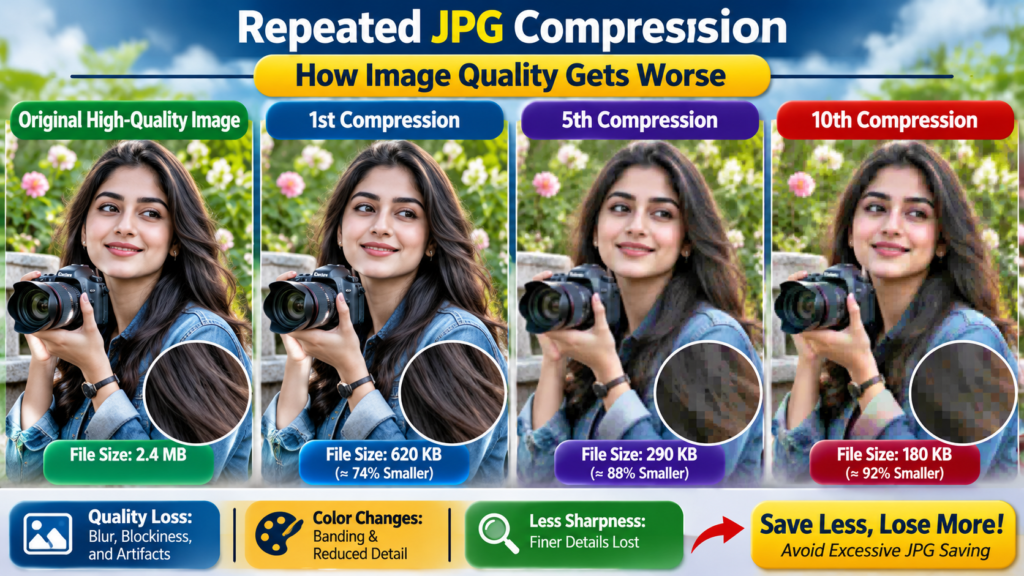
If you’ve ever saved the same JPG image multiple times, you may notice a loss of sharpness or artifacts. This is the effect of Repeated JPG Compression.
Every time a JPG is edited and re-saved, the file is compressed again. Because JPG uses a glossy compression method, some image data is permanently discarded during each save.
Understanding how repeated JPG compression works can help photographers, designers, bloggers, and everyday users protect their images and maintain professional-looking visuals.
What Is JPG Compression?
JPG (or JPEG) is one of the most widely used image formats on the web. It was designed to reduce file sizes while keeping images visually appealing.
Unlike lossless formats such as PNG, JPG removes some image information to make files smaller. This process is called glossy compression.
When a JPG image is compressed:
- Some pixel data is discarded.
- Similar colors may be merged.
- Fine details can be simplified.
- File size becomes significantly smaller.
The trade-off is straightforward: smaller files in exchange for a small amount of image quality.
For web use, social media, and email sharing, JPG is often the ideal choice because it balances quality and file size efficiently.
Why Does Repeated JPG Compression Cause Damage?
The key issue is that JPG compression is not reversible.
When you save a JPG image for the first time, certain image data is removed. If you later open that image, make changes, and save it again as JPG, the compression process runs again.
The software doesn’t know which details were removed previously. It compresses the already-compressed image, causing additional data loss.
Think of it like photocopying a photocopy. Each generation becomes slightly less clear than the one before it.
What Happens During Every Re-Save?
Each new JPG save can introduce:
- Increased compression artifacts
- Blurred edges
- Reduced detail
- Color degradation
- Block image sections
- Loss of texture definition
The more often the cycle repeats, the more visible the damage becomes.
Understanding JPG Artifacts
Compression artifacts are unwanted visual defects that appear due to image compression.
Some common artifacts include:
Blockiness
Images may develop square-shaped patterns, especially in areas with smooth gradients or subtle color transitions.
Halo Effects
Light or dark outlines may appear around objects and text.
Smearing
Fine details such as hair, leaves, fabric textures, or small text become blurry.
Color Banding
Gradual color transitions can appear as distinct bands instead of smooth gradients.
Mosquito Noise
Tiny noisy patterns may appear around high-contrast edges.
These defects become increasingly noticeable after multiple editing and saving cycles.
A Simple Example
Imagine you have a photograph saved as a JPG file.
First Save
- Original quality: 100%
- JPG quality setting: 80%
- File size reduced significantly
- Little visible quality loss
Second Save
- Image opened and edited
- Saved again at 80%
- Additional details removed
Tenth Save
- Compression artifacts become obvious
- Fine textures disappear
- Colors appear distorted
- Edges look softer
Even when using identical quality settings, quality loss compounds over multiple saves.
Which Types of Images Are Most Affected?
Some images degrade faster than others.
Photographs
Images containing detailed textures such as:
- Landscapes
- Portraits
- Wildlife photos
- Architecture
often show quality loss sooner because compression removes subtle details.
Images With Text
Graphics containing:
- Logos
- Screenshots
- Info-graphics
- Interface elements
can quickly become blurry because JPG is not optimized for sharp edges and text.
High-Contrast Graphics
Images with distinct edges can develop visible artifacts near boundaries between colors.
How Much Quality Is Lost?
The exact amount depends on several factors:
| Factor | Impact |
|---|---|
| Compression level | Higher compression causes more loss |
| Number of saves | More saves lead to more degradation |
| Image complexity | Detailed images lose quality faster |
| Editing software | Different software uses different compression algorithms |
| Export settings | Lower quality settings accelerate damage |
A single re-save may be almost impossible to notice, but dozens of saves can significantly degrade an image.
JPG Quality Settings Matter
Most image editors allow you to choose a compression quality level when exporting JPG files.
Typical ranges include:
| Quality Level | Result |
|---|---|
| 90–100% | Excellent quality, larger file |
| 75–90% | Very good balance |
| 60–75% | Noticeable compression |
| Below 60% | Visible quality loss |
Repeated saving at lower quality settings dramatically increases image degradation.
Comparing JPG With Other Formats
Understanding alternative formats can help you preserve image quality more effectively.
| Format | Compression Type | Quality Loss |
|---|---|---|
| JPG | Lossy | Yes |
| PNG | Lossless | No |
| TIFF | Lossless or uncompressed | No |
| WebP | Lossy or lossless | Depends on settings |
| AVIF | Modern lossy or lossless | Depends on settings |
For ongoing edits, PNG and TIFF are often better choices because they preserve image data between saves.
Why Social Media Can Make It Worse
Many users unknowingly experience repeated compression through social media platforms.
When you upload an image to sites such as:
- X
the platform often applies additional compression to reduce storage and bandwidth usage.
If you then download the compressed image, edit it, and upload it again, you’re introducing another generation of compression.
This chain can noticeably reduce image quality over time.
Common Situations That Cause Repeated Compression
Many people accidentally compress images multiple times without realizing it.
Updating Website Images
A blogger downloads an image, edits it, saves it, uploads it, downloads it later, edits it again, and repeats the cycle.
Client Revision Work
Designers often receive JPG files, make edits, save them as JPG, and exchange them through email multiple times.
Social Media Content Creation
Marketers frequently reuse old graphics that have already gone through multiple compression stages.
Screenshot Editing
Screenshots saved repeatedly as JPG can become progressively blurrier, particularly around text.
How to Prevent JPG Quality Loss
The best strategy is avoiding unnecessary re-compression.
Keep an Original Copy
Always preserve your original image.
Store:
- RAW photo files
- TIFF files
- PNG files
- Original JPG exports
Use the original source whenever new edits are needed.
Edit Using Lossless Formats
During editing, save working files in:
- PNG
- TIFF
- PSD
- XCF
Convert to JPG only when creating the final version.
Minimize Re-Saving
Instead of repeatedly opening and saving JPG files, make all desired edits first and export only once.
Use High-Quality Export Settings
When exporting JPG images:
- Use quality settings between 80% and 95%.
- Preview artifacts before saving.
- Avoid aggressive compression.
Archive Master Files
Professional photographers and designers typically maintain master copies that remain untouched.
Every exported version originates from the master file rather than a previously compressed JPG.
Can JPG Damage Be Reversed?
Unfortunately, lost image data cannot be fully recovered.
Once JPG compression removes details, the original information is gone.
Some image enhancement tools can improve appearance by:
- Reducing artifacts
- Sharpening edges
- Improving contrast
- Up scaling resolution
However, these methods estimate missing details rather than restoring the original data.
The most effective approach is preventing loss before it occurs.
How Modern Image Optimization Tools Help
Modern image optimization platforms reduce file sizes while preserving visual quality as much as possible.
When compressing images for websites:
- Choose appropriate quality levels.
- Avoid repeated optimization cycles.
- Keep original image archives.
- Use modern formats when supported.
If you need to convert, compress, or optimize images for web performance, tools available on imgconvert.cyou can help streamline the process while allowing you to control output settings and maintain better image quality.
For users interested in image optimization workflows, it can also be helpful to learn about related topics such as image format selection, file size reduction techniques, and modern web image standards. Consider exploring resources like:
- https://imgconvert.cyou/png-to-jpg-converter
- https://imgconvert.cyou/image-compressor
- https://imgconvert.cyou/webp-converter
- https://imgconvert.cyou/image-resizer
These related tools can help you build a more efficient image management workflow while avoiding unnecessary quality loss.
Common Misconceptions About JPG Compression
“Saving a JPG Once Ruins It”
Not necessarily.
At high-quality settings, a single save may introduce little to no visible degradation.
“Increasing Quality Later Restores Lost Data”
False.
Saving a compressed JPG at a higher quality setting later does not restore information that has already been removed.
“Large JPG Files Never Lose Quality”
File size alone does not guarantee image quality. A large JPG can still contain significant compression artifacts.
“Only Professionals Notice Compression Damage”
As image degradation accumulates, even casual viewers can see reduced sharpness, blockiness, and color distortion.
Checklist for Protecting Image Quality
Before editing any important image, follow these best practices:
✅ Save an untouched original version
✅ Use PNG, TIFF, or project files during editing
✅ Export to JPG only when finished
✅ Avoid multiple save cycles
✅ Use high-quality export settings
✅ Archive master images
✅ Avoid repeatedly downloading and re-uploading compressed images
✅ Keep backups before making major edits
FAQs
Does every JPG save reduce quality?
Generally, yes. Each new JPG save applies compression again, although quality loss may be minimal if high-quality settings are used.
Is PNG better than JPG?
PNG is better for preserving image quality and sharp text because it uses lossless compression. JPG is usually better for photographs and smaller file sizes.
How many times can you save a JPG before quality noticeably drops?
There is no fixed number. Results depend on quality settings, image content, and editing workflow. Some images may show visible degradation after only a few saves, while others remain acceptable much longer.
Can AI restore repeatedly compressed JPG images?
AI enhancement tools can improve appearance and reduce visible artifacts, but they cannot perfectly recover the original image data that was discarded.
Should I convert JPG files to PNG to stop quality loss?
Converting a JPG to PNG prevents future compression loss during editing, but it does not restore quality already lost in the JPG file.
Final Thoughts
Repeated JPG Compression damages image quality because each save removes additional visual information that cannot be recovered.
A single save may produce little noticeable change. However, repeated editing and exporting can cause artifacts, blurring, color distortion, and loss of detail.
The best way to protect image quality is simple: keep original files, perform edits in a lossless format, and export to JPG only when the image is ready for sharing or publishing. By following this workflow, you can enjoy the storage benefits of JPG without sacrificing the clarity and detail that make images look their best.