Can JPG Preserve Animation? Understanding Format Limits
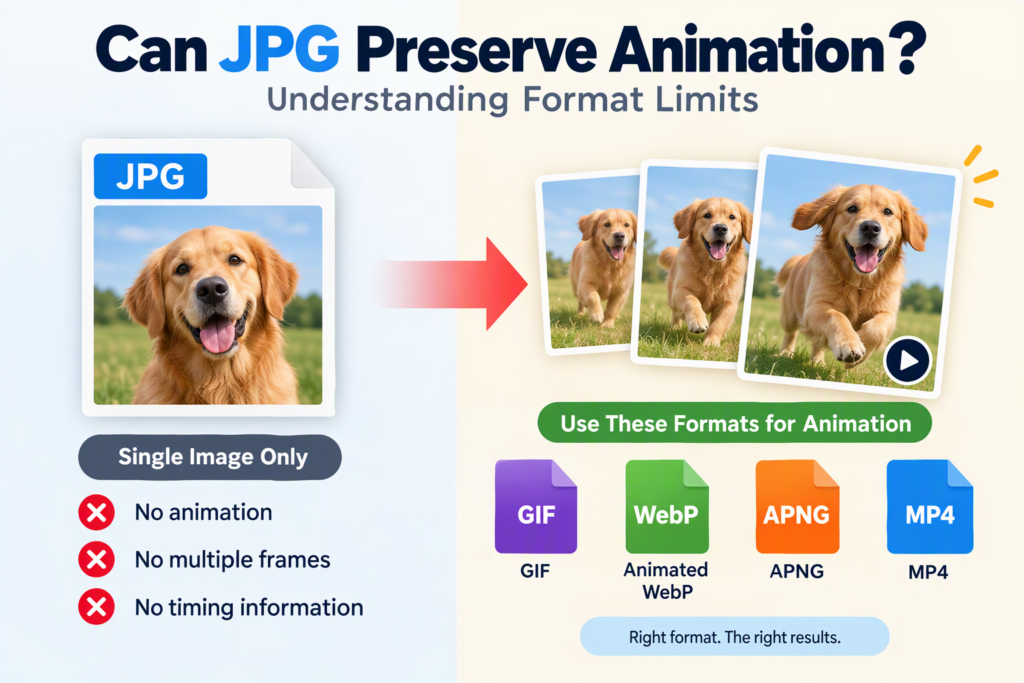
If you’re wondering whether a JPG image can preserve animation, the short answer is no. JPG (or JPEG) files are designed to store a single still image. They cannot contain multiple frames or timing information, which are essential for animation. If you save an animated image as a JPG, only one frame is preserved, and all motion is lost.
Understanding why this happens can help you choose the right image format for websites, social media, presentations, and digital projects. This guide explains how JPG works, why it cannot support animation, and which formats you should use instead.
What Is a JPG File?
JPG, also known as JPEG (Joint Photographic Experts Group), is one of the most widely used image formats in the world. It was created to efficiently store photographic images while keeping file sizes relatively small.
Key characteristics of JPG files include:
- Supports millions of colors
- Uses lossy compression to reduce file size
- Ideal for photographs and complex images
- Compatible with virtually all devices and software
- Stores only a single image frame
Because JPG files focus on compressing one image efficiently, they do not include any mechanism for storing multiple frames required for animation.
Why Animation Requires More Than a Single Image
Animation works by displaying a sequence of images, called frames, in rapid succession. These frames create the illusion of movement.
For an image format to support animation, it must store:
| Requirement | Purpose |
|---|---|
| Multiple frames | Show different stages of movement |
| Frame timing | Control how long each frame appears |
| Playback sequence | Determine frame order |
| Loop settings | Repeat the animation automatically |
JPG files support none of these features.
A JPG file contains only one compressed image. There is no place within the format specification to store additional frames or animation instructions.
What Happens When You Convert an Animated File to JPG?
Many users accidentally convert animated files and then discover that the animation has disappeared.
For example:
- Animated GIF → JPG
- Animated WebP → JPG
- APNG → JPG
In each case, the result is a static image.
Typically, image editors and conversion tools preserve only:
- The first frame
- A selected frame
- A representative frame chosen by the software
All remaining frames are discarded because JPG has no way to save them.
If you need to extract individual frames from an animation, converting to JPG can be useful. However, it cannot preserve the original motion.
Understanding the Technical Limitation
The limitation is not a software bug. It is a fundamental characteristic of the JPEG format.
JPEG was created primarily for storing photographs efficiently. The file structure is designed around a single raster image.
Unlike animation-capable formats, JPEG lacks:
- Frame containers
- Timeline metadata
- Playback controls
- Animation sequencing data
As a result, even modern image editing software cannot make a standard JPG animated without changing the file format entirely.
Common Myth: “Animated JPGs Exist”
You may occasionally encounter claims that animated JPGs exist. This misunderstanding usually comes from one of three situations.
Motion JPEG (MJPEG)
Motion JPEG is sometimes mistaken for an animated JPG.
MJPEG is actually a video format that stores a sequence of JPEG images inside a video stream. Each frame is an individual JPEG image, but the overall file is a video container, not a standard JPG image.
Examples include:
- Security camera recordings
- Webcam streams
- Older digital video systems
A Motion JPEG video is not the same as a JPG image file.
Live Photos
Some smartphones create photos that appear animated.
For example, a Live Photo on a phone may include:
- One still image
- A short video clip
- Motion effects
While it may look like an animated image, the movement is stored separately from the JPG file itself.
Website Animation Effects
Some websites use CSS or JavaScript to animate static JPG images.
The image remains a normal JPG, and the animation is handled by the website code.
Which Formats Support Animation?
If your goal is to preserve animation, use formats specifically designed for motion.
GIF
GIF is one of the oldest animation-capable formats.
Advantages:
- Widely supported
- Easy to use
- Supports simple animations
Limitations:
- Maximum of 256 colors
- Larger file sizes for complex animations
- Lower image quality
Best for:
- Memes
- Simple graphics
- Lightweight animations
Animated WebP
Animated WebP is a modern alternative developed by Google.
Advantages:
- Better compression
- Smaller file sizes
- Improved image quality
- Transparency support
Best for:
- Websites
- Modern applications
- Performance-focused projects
If you’re converting image formats regularly, tools such as ImgConvert can help handle WebP, JPG, PNG, and other formats efficiently. You can also explore related image conversion guides on ImgConvert for different format requirements.
APNG
Animated PNG (APNG) extends the PNG format with animation support.
Advantages:
- High image quality
- Full-color support
- Transparency support
Best for:
- User interfaces
- Detailed graphics
- High-quality animations
MP4
For longer or more complex animations, MP4 is often the best choice.
Advantages:
- Excellent compression
- Broad compatibility
- Superior quality-to-size ratio
Best for:
- Videos
- Website animations
- Social media content
JPG vs Animated Formats
The following comparison highlights the differences.
| Feature | JPG | GIF | Animated WebP | APNG |
|---|---|---|---|---|
| Animation Support | No | Yes | Yes | Yes |
| Multiple Frames | No | Yes | Yes | Yes |
| Transparency | No | Limited | Yes | Yes |
| High Image Quality | Yes | Limited | Yes | Yes |
| Small File Size | Yes | Moderate | Excellent | Moderate |
| Best for Photos | Yes | No | Yes | Limited |
This comparison makes it clear that JPG excels as a photo format but is unsuitable for animated content.
Can You Add Animation to a JPG?
A JPG image itself cannot become animated while remaining a JPG file.
What you can do is:
- Start with a JPG image.
- Import it into animation software.
- Create motion effects.
- Export the result as:
- GIF
- WebP
- MP4
- APNG
The exported file can be animated because it uses a format that supports multiple frames.
The original JPG remains unchanged.
Real-World Example
Imagine you have a company logo saved as a JPG file.
You want the logo to:
- Fade in
- Rotate
- Move across the screen
The workflow would be:
- Open the JPG in an editor.
- Create the animation sequence.
- Export as GIF, WebP, APNG, or MP4.
- Upload the animated version.
If you instead export back to JPG, the animation disappears, leaving only a single frame.
Common Mistakes People Make
Converting GIF to JPG Accidentally
This is one of the most frequent issues.
Users download an animated GIF, convert it to JPG, and then wonder why the animation stopped working.
The conversion process removes all animation data.
Using JPG for Website Animations
Developers sometimes upload JPG images expecting browsers to animate them.
Browsers display JPG files as static images because the format contains no animation instructions.
Choosing JPG for Social Media Motion Graphics
Many social platforms require video formats for moving content.
Uploading a JPG instead of MP4 or GIF results in a static image.
Assuming Higher Quality Means Animation Support
JPG often provides excellent photographic quality, but image quality and animation capability are separate features.
A format can have great image quality while still lacking animation support.
When JPG Is the Best Choice
Despite its inability to support animation, JPG remains extremely useful.
Choose JPG when you need:
- Photographs
- Product images
- Blog graphics
- Website banners
- Social media images
- Email marketing visuals
For purely static content, JPG often offers an excellent balance between quality and file size.
If you need to convert photos between JPG, PNG, WebP, and other formats, you can find helpful conversion resources throughout ImgConvert to select the most suitable format for your project.
How to Preserve Animation During Conversion
Before converting any animated image, consider the final use case.
Preserve Animation
Use:
- GIF → GIF
- GIF → Animated WebP
- GIF → MP4
- APNG → Animated WebP
- WebP → MP4
Preserve Only a Still Image
Use:
- GIF → JPG
- GIF → PNG
- WebP → JPG
- APNG → JPG
This distinction prevents accidental loss of animation.
Quick Checklist
Before converting a file, ask:
- Does the image currently move?
- Do I need to keep the animation?
- Does the target format support multiple frames?
- Is the destination platform compatible with animated formats?
If animation matters, avoid exporting to JPG.
FAQs
Can a JPG file contain multiple frames?
No. Standard JPG files are limited to a single image frame and cannot store animation data.
Why does my animated GIF stop moving when converted to JPG?
The JPG format does not support animation. During conversion, only one frame is saved.
Is Motion JPEG an animated JPG?
No. Motion JPEG is a video format that uses many JPEG images as video frames. It is not a standard JPG image file.
Which format is better than GIF for animation?
Animated WebP often provides better image quality and smaller file sizes than GIF while supporting animation and transparency.
Can I convert a JPG back into an animation?
Not automatically. You can use the JPG as a source image and create a new animation, but the original animation data cannot be recovered once it has been removed.
Final Thoughts
JPG is one of the best formats for static photographs, but it cannot preserve animation because it stores only a single image frame. If you convert an animated GIF, WebP, or APNG into JPG, all motion information is lost and only one frame remains.
When animation is important, choose formats such as GIF, Animated WebP, APNG, or MP4. Understanding these format limitations helps you avoid accidental data loss and ensures your images behave exactly as intended. For additional image conversion tutorials and format comparisons, explore the related resources available on ImgConvert to find the right format for every project.