How to Convert Images on Your Phone
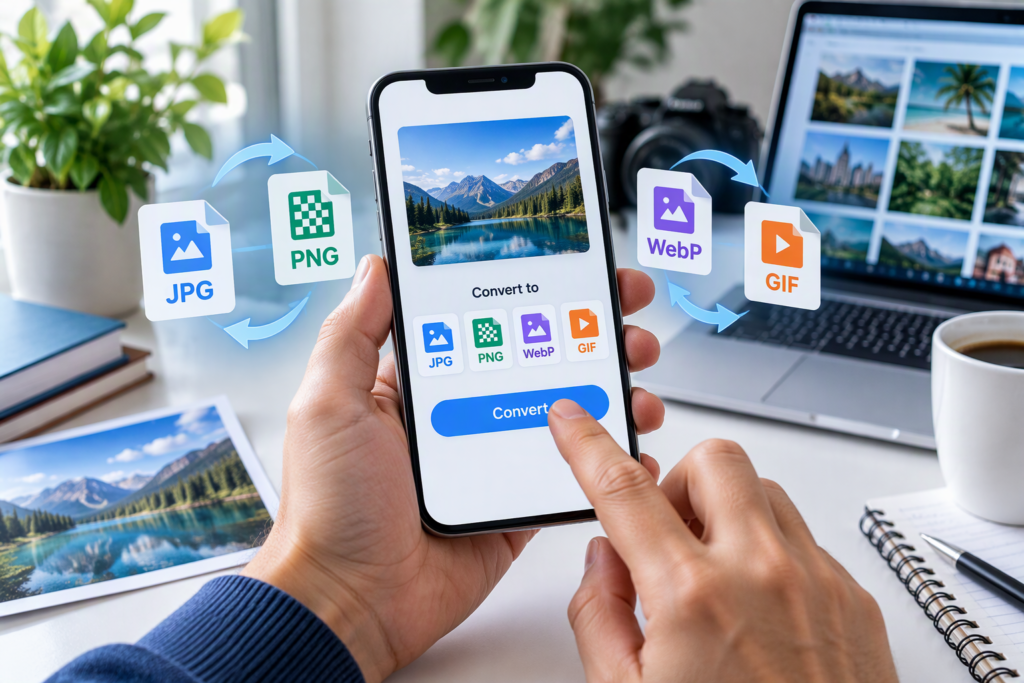
Need to convert an image on your phone from one format to another? The fastest method is to use an online image converter such as ImgConvert, which works directly from your mobile browser without requiring any software installation. Whether you need to change JPG to PNG, PNG to WebP, WebP to JPG, or another popular format, image conversion can be completed in just a few taps.
This guide explains how to convert images on Android and iPhone, which formats to choose, common mistakes to avoid, and how to get the best image quality during the conversion process.
Why Convert Images on Your Phone?
Image formats serve different purposes. Sometimes the format created by your phone isn’t the best option for sharing, editing, uploading, or storing files.
Common reasons to convert images include:
- Reducing file size for faster uploads
- Improving website performance
- Making images compatible with apps and devices
- Preserving transparency with PNG files
- Converting modern WebP images into JPG for easier sharing
- Preparing images for presentations, documents, or social media
For example, a WebP image downloaded from a website may not work properly in older applications. Converting it to JPG solves the compatibility problem instantly.
Understanding Common Image Formats
Before converting images, it helps to understand the most popular file types.
| Format | Best For | Advantages |
|---|---|---|
| JPG/JPEG | Photos and everyday images | Small file size and broad compatibility |
| PNG | Graphics and transparent backgrounds | Supports transparency and high quality |
| WebP | Websites and online publishing | Smaller file size with good quality |
| GIF | Simple animations | Supported by most browsers |
| BMP | High-quality raw images | Minimal compression |
| TIFF | Professional printing and editing | Excellent image quality |
Choosing the correct format depends on how you plan to use the image.
How to Convert Images on Android
Android users have several ways to convert images, but using a browser-based tool is usually the simplest solution.
Method 1: Use ImgConvert
- Open Chrome or your preferred browser.
- Visit https://imgconvert.cyou.
- Upload the image from your gallery.
- Select the output format.
- Start the conversion.
- Download the converted file.
This method works across most Android devices and does not require installing additional apps.
Method 2: Use a Photo Editing App
Many image-editing applications can export photos in different formats.
Typical steps include:
- Open the image in the app.
- Tap Save As or Export.
- Choose a different format.
- Save the file.
While effective, this approach may consume more storage space and often requires app permissions.
How to Convert Images on iPhone
iPhone users can also convert images without downloading dedicated software.
Using ImgConvert on Safari
- Launch Safari.
- Visit https://imgconvert.cyou.
- Upload your image.
- Select the desired format.
- Convert the file.
- Download the finished image.
The process is nearly identical to Android, making it easy regardless of your device.
Using Files and Shortcuts
Some users create iOS Shortcuts that convert images automatically. However, setting up shortcuts can take time and may not support every format.
An online converter is often faster for occasional conversions.
Popular Image Conversion Tasks
Different situations require different image conversions.
JPG to PNG
Use this conversion when:
- You need a transparent background
- Editing logos and graphics
- Creating design elements
PNG files often maintain better visual quality for graphics and illustrations.
PNG to JPG
Convert PNG to JPG when:
- Reducing file size
- Sharing photos online
- Uploading images where transparency is unnecessary
This is one of the most common image conversion tasks on mobile devices.
WebP to JPG
Many websites use WebP because it loads quickly. However, some applications still prefer JPG.
Converting WebP to JPG helps when:
- Sharing images with older software
- Uploading files to platforms that don’t support WebP
- Adding images to presentations or documents
You can also learn more about modern image optimization in our guide on image compression techniques for faster website performance.
JPG to WebP
This conversion is especially useful for website owners.
Benefits include:
- Smaller file sizes
- Faster page speeds
- Improved user experience
- Better storage efficiency
If you manage a website, consider combining image conversion with SEO image optimization best practices to improve overall site performance.
How to Maintain Quality During Conversion
One concern many users have is image quality loss.
Follow these tips for better results:
Start With the Best Original
A low-quality source image cannot be improved significantly through conversion.
Always begin with the highest-quality file available.
Choose the Right Format
Converting between formats repeatedly can reduce quality, especially when using JPG.
If quality is your top priority:
- Use PNG for graphics
- Use TIFF for professional work
- Use high-quality JPG settings for photographs
Avoid Multiple Conversions
Instead of:
PNG → JPG → WebP → JPG
Try converting directly:
PNG → JPG
Fewer conversions generally produce better results.
Check Resolution Settings
Some converters offer resizing options.
If preserving quality matters:
- Keep the original dimensions
- Avoid unnecessary downsizing
- Use the highest quality setting available
Benefits of Using an Online Image Converter
Online tools have become increasingly popular because they simplify the process.
Advantages include:
No Installation Required
You can convert images directly from your browser without downloading software.
Works Across Devices
Whether you’re using:
- Android
- iPhone
- Tablet
- Chromebook
The conversion process remains similar.
Saves Storage Space
Dedicated image-conversion apps can occupy significant storage.
Browser-based tools eliminate that problem.
Fast Workflow
Upload, convert, and download within minutes.
This is especially useful when handling images for social media, blogs, school projects, or work documents.
Common Mistakes to Avoid
Many users make simple mistakes that affect results.
Choosing the Wrong Format
Not every image needs PNG.
For example:
- Photos usually work best as JPG or WebP.
- Logos and transparent graphics often require PNG.
Ignoring File Size
A large image may upload slowly even after conversion.
Consider compressing images when appropriate.
Forgetting Compatibility Requirements
Some websites and applications accept only specific file formats.
Always check requirements before converting.
Overwriting the Original
Keep a copy of the original image whenever possible.
This allows you to reconvert using different settings later.
Image Conversion for Website Owners
If you run a blog, business website, or online store, image conversion can affect performance and search visibility.
Converting images properly helps:
- Reduce page load times
- Improve user experience
- Lower bandwidth usage
- Improve Core Web Vitals performance
- Optimize mobile browsing
Website owners often convert images to WebP because of the balance between quality and file size.
For additional optimization strategies, see our related guides on:
- How to Compress Images Without Losing Quality
- Best Image Formats for Websites
- Website Speed Optimization Tips
- Beginner’s Guide to Technical SEO
- How to Optimize Images for Search Engines
These topics work together to create a faster and more efficient website.
Security and Privacy Considerations
Whenever you upload images to an online service, it’s important to consider privacy.
Good practices include:
- Avoid uploading highly sensitive personal documents.
- Use trusted conversion tools.
- Delete downloaded files you no longer need.
- Check website privacy policies when handling confidential content.
For everyday photos and graphics, browser-based conversion tools are generally convenient and easy to use.
Mobile Image Conversion Checklist
Before converting an image, review this quick checklist:
✓ Choose the correct image format
✓ Keep the original file as a backup
✓ Use the highest-quality source image
✓ Verify website or app compatibility requirements
✓ Check final image quality after conversion
✓ Optimize file size when necessary
✓ Store converted files in an organized folder
Following these steps helps prevent quality loss and compatibility issues.
Frequently Asked Questions
Can I convert images on my phone without installing an app?
Yes. Online image converters such as ImgConvert allow you to upload, convert, and download images directly through your mobile browser.
Which image format has the best quality?
PNG and TIFF generally preserve more image data than JPG. However, the best format depends on the intended use.
Does image conversion reduce quality?
Not always. Some formats, especially JPG, use compression that may reduce quality. Choosing the right conversion settings can help minimize quality loss.
Is WebP better than JPG?
For many web applications, WebP offers smaller file sizes while maintaining similar visual quality. However, JPG remains more universally compatible.
Can I convert multiple images at once?
Many image conversion tools support batch processing, allowing several files to be converted simultaneously.
Final Thoughts
Converting images on your phone is easier than ever. Whether you need to change JPG to PNG, WebP to JPG, or optimize photos for a website, a browser-based tool like ImgConvert provides a quick and convenient solution without requiring extra software.
Start by selecting the format that matches your needs, keep a copy of the original image, and verify the final quality after conversion. With the right approach, you can convert images in seconds while maintaining compatibility, quality, and efficiency across all your devices.