How to Convert JPG to PNG and What Actually Changes
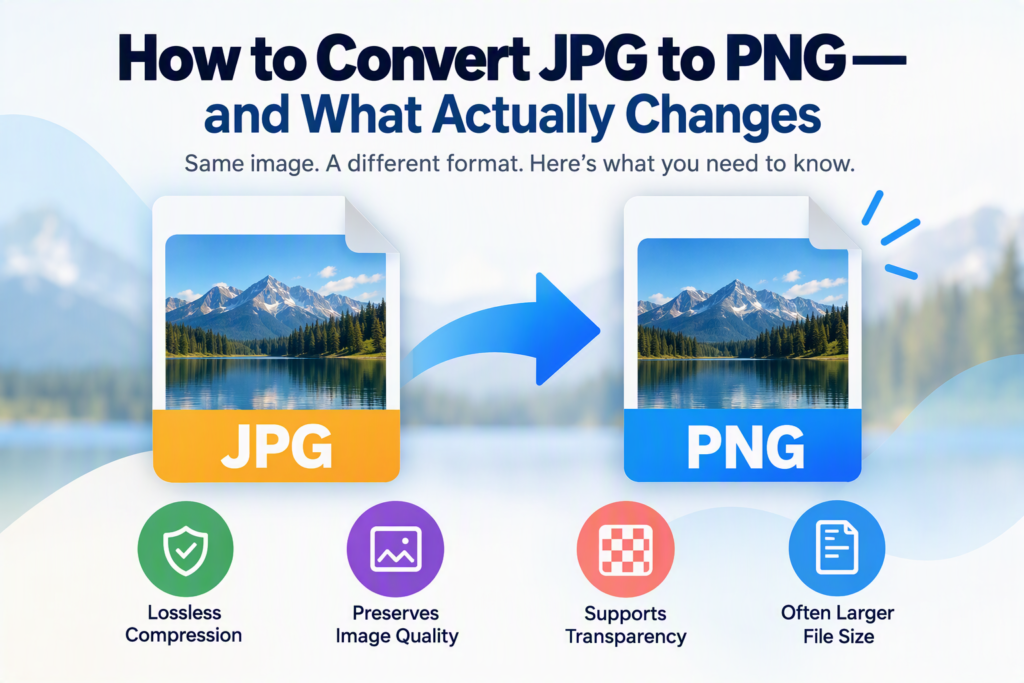
If you convert a JPG to a PNG, the image will usually look very similar at first glance, but the file format changes in important ways. PNG uses lossless compression, which preserves image data without introducing new compression artifacts. JPG uses lossy compression, which reduces file size by permanently discarding some image information. Converting a JPG to PNG does not restore details that were already lost, but it can prevent further quality loss during future edits.
Understanding what changes during conversion can help you choose the right format for photos, graphics, screenshots, logos, and web images. This guide explains how to convert JPG to PNG, what happens to image quality, file size, transparency, and when the conversion is actually worthwhile.
JPG vs PNG: The Key Difference
Before converting images, it’s important to understand what these formats are designed to do.
What Is a JPG?
JPG (or JPEG) is one of the most widely used image formats. It was created to store photographs efficiently by using lossy compression.
This compression significantly reduces file size, making JPG ideal for:
- Digital photos
- Website images
- Social media uploads
- Email attachments
- Large image collections
The trade-off is that some image data is discarded during compression. Depending on the compression level, this loss may be invisible or noticeable.
What Is a PNG?
PNG stands for Portable Network Graphics. Unlike JPG, PNG uses lossless compression.
That means:
- Image data is preserved
- No new compression artifacts are introduced
- Text and sharp edges remain crisp
- Transparency is supported
PNG is commonly used for:
- Logos
- Screenshots
- Graphics
- Icons
- Images with transparent backgrounds
- Design projects
What Actually Changes When You Convert JPG to PNG?
Many people assume that converting JPG to PNG automatically improves image quality. This is one of the most common misconceptions.
The reality is more nuanced.
The Existing Quality Stays the Same
When you convert a JPG to PNG, the PNG retains the image quality that already exists in the JPG.
For example:
- If the JPG is sharp, the PNG will look sharp.
- If the JPG has visible compression artifacts, those artifacts will remain.
- If image details were already lost during JPG compression, they cannot be recovered.
Think of it like saving a photocopy as a different file type. Changing the container does not recreate missing information.
Future Saves May Preserve Quality Better
Once an image exists as a PNG, future edits can often be saved without introducing additional compression loss.
For example:
- Open a JPG image.
- Convert it to PNG.
- Add text or graphics.
- Save multiple times.
The PNG version typically avoids the repeated compression cycle that JPG files can experience during editing and re-saving.
File Size Often Increases
A PNG file is frequently larger than a JPG version of the same photograph.
This happens because:
- PNG stores more image data.
- PNG compression prioritizes preservation over maximum file reduction.
- Photographs contain many colors and gradients that JPG handles efficiently.
A photo that is 2 MB as a JPG might become 5 MB or larger after conversion to PNG.
However, screenshots and simple graphics can sometimes compress efficiently as PNG files.
Transparency Is Not Added Automatically
A common myth is that converting JPG to PNG creates a transparent background.
It does not.
JPG files do not contain transparency information. During conversion, the existing background remains exactly as it was.
For example:
- White background in JPG → White background in PNG
- Blue background in JPG → Blue background in PNG
If you want transparency, you must remove the background separately before saving as PNG.
When Should You Convert JPG to PNG?
The best format depends on how the image will be used.
Use PNG for Graphics and Text
PNG works especially well for images containing:
- Logos
- Illustrations
- Digital artwork
- Interface elements
- Text-heavy graphics
- Diagrams
These images often contain hard edges and solid colors that PNG preserves extremely well.
Use PNG During Editing
If you’re actively editing an image and expect multiple revisions, converting to PNG can help prevent additional quality degradation caused by repeated JPG exports.
Designers frequently use PNG as an intermediate working format.
Use PNG for Transparency
PNG supports alpha-channel transparency, allowing partially transparent pixels and smooth edges.
This makes it useful for:
- Website logos
- Product cutouts
- Overlay graphics
- Watermarks
- User interface elements
Use JPG for Photos and Smaller Files
For most digital photographs, JPG remains the better choice if file size matters.
Examples include:
- Travel photos
- Family pictures
- Blog photography
- Online galleries
The smaller file size generally makes loading, sharing, and storing images easier.
How to Convert JPG to PNG
Converting a JPG image to PNG is straightforward and usually takes only a few seconds.
Method 1: Use an Online Converter
Most online image converters follow the same process:
- Upload the JPG image.
- Choose PNG as the output format.
- Start the conversion.
- Download the PNG file.
This method works on:
- Windows
- Mac
- Linux
- Android
- iPhone
- Tablets
It is often the fastest option when you only need to convert a few images.
Method 2: Use Built-In Software on Windows
Windows includes tools that can save images in different formats.
Using Paint:
- Open the JPG image in Paint.
- Click File.
- Select Save As.
- Choose PNG Picture.
- Save the file.
The image is now stored as a PNG.
Method 3: Use Preview on Mac
Mac users can convert images without installing additional software.
- Open the JPG file in Preview.
- Click File.
- Select Export.
- Choose PNG from the format menu.
- Save the image.
Method 4: Use Professional Editing Software
Programs such as Adobe Photoshop, Affinity Photo, and GIMP allow format conversion while providing additional editing controls.
Typical workflow:
- Open the JPG.
- Edit if needed.
- Export or save as PNG.
- Adjust output settings if available.
This approach is useful when preparing graphics for professional or web use.
Will Converting JPG to PNG Improve Image Quality?
Usually, no.
This is one of the most misunderstood aspects of image conversion.
What Conversion Can Do
Converting to PNG can:
- Prevent future compression losses
- Preserve current image data
- Improve workflow for editing
- Support transparency after background removal
What Conversion Cannot Do
Converting to PNG cannot:
- Restore lost details
- Sharpen a blurry image
- Remove JPG artifacts automatically
- Increase image resolution
- Create transparency automatically
If the original JPG has poor quality, the PNG version will retain those limitations.
Example: What Happens During Conversion?
Imagine you have a JPG image of a company logo downloaded from a website.
The JPG contains:
- Slight compression artifacts
- White background
- Small text
After conversion to PNG:
- The text remains the same quality.
- The compression artifacts remain.
- The white background remains.
- Future edits can be saved without introducing additional JPG compression.
The result may be larger in file size but better suited for ongoing editing.
JPG to PNG Comparison
| Feature | JPG | PNG |
|---|---|---|
| Compression Type | Lossy | Lossless |
| Transparency Support | No | Yes |
| Best for Photos | Yes | Sometimes |
| Best for Logos | No | Yes |
| Best for Screenshots | Usually No | Yes |
| File Size | Smaller | Larger |
| Repeated Editing | May Reduce Quality | Preserves Quality Better |
| Sharp Text and Graphics | Moderate | Excellent |
Common Mistakes When Converting JPG to PNG
Expecting Better Resolution
Resolution refers to image dimensions, such as 1920 × 1080 pixels.
Changing the file format does not increase resolution.
A 1920 × 1080 JPG becomes a 1920 × 1080 PNG unless you resize it separately.
Assuming PNG Always Looks Better
A PNG may not visibly outperform a high-quality JPG, especially for photographs.
The difference often becomes noticeable during editing, scaling, or repeated saves.
Creating Unnecessarily Large Files
Converting every photo to PNG can consume storage space quickly.
For photo-heavy websites, larger PNG files can increase loading times.
Expecting Automatic Background Removal
PNG supports transparency, but conversion alone does not remove backgrounds.
Background removal must happen before exporting the final PNG.
Repeatedly Converting Formats
Switching back and forth between JPG and PNG rarely improves anything and can complicate file management.
Choose the format that best suits the final purpose of the image.
Should You Convert JPG to PNG for Websites?
It depends on the image type.
Use PNG for:
- Logos
- Icons
- Navigation graphics
- Transparent elements
- UI components
- Illustrations with text
Use JPG for:
- Blog photos
- Product photography
- Travel images
- Real-world scenes
- Large image galleries
For modern websites, choosing the right format often matters more than converting every image to PNG.
How to Tell If PNG Is the Better Choice
Consider these questions:
Is the Image a Photograph?
If yes, JPG is often more efficient.
Does It Contain Text?
PNG usually preserves text more clearly.
Do You Need Transparency?
PNG is typically the correct choice.
Will You Edit It Frequently?
PNG may help preserve quality throughout the editing process.
Is File Size Critical?
JPG usually provides smaller files.
A quick evaluation of these factors can save storage space and improve image quality where it matters most.
FAQs
Does converting JPG to PNG reduce quality?
No. Converting JPG to PNG does not normally reduce quality. However, it also does not recover details lost in the original JPG.
Why is my PNG larger than the JPG?
PNG uses lossless compression and often stores more image information. As a result, PNG files are frequently larger, especially for photographs.
Can PNG make a blurry JPG sharp again?
No. Format conversion cannot recreate image detail that is already missing.
Can I make the background transparent after converting?
Yes, but transparency requires removing the background through an editing tool. Simply converting to PNG does not make the background transparent.
Which format is better for logos?
PNG is generally the better choice because it preserves sharp edges, supports transparency, and handles graphics more effectively.
The Bottom Line
Converting JPG to PNG changes the file format, not the quality of information already contained in the image. PNG preserves image data without introducing new compression loss, making it a strong choice for graphics, screenshots, logos, transparency, and ongoing editing. JPG remains the more efficient format for most photographs because of its smaller file size.
Before converting, consider how the image will be used. If you need transparency, crisp graphics, or a format that holds up well during repeated edits, PNG is often the better option. If storage space and fast loading are the priority, JPG may remain the smarter choice.