Why Your Converted Image May Be Larger Than the Original
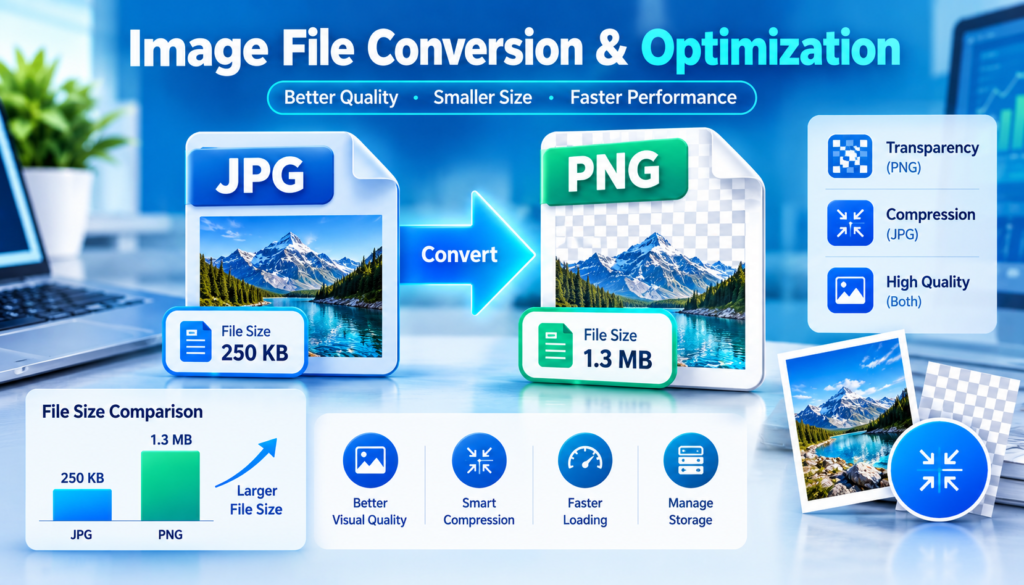
You convert a JPG to PNG expecting a smaller file, but the new image ends up larger than the original. This is a common and completely normal result. Image conversion does not automatically reduce file size. In many cases, changing formats, increasing quality settings, preserving transparency, or removing compression can make the converted image significantly larger.
Understanding why this happens helps you choose the right format, quality settings, and optimization method before converting images.
If you frequently convert images online using tools like ImgConvert, knowing how image formats work can help you avoid unexpectedly large files and create images that are better suited for websites, social media, email, or printing.
Image Conversion Does Not Always Mean Compression
Many people assume that image conversion and image compression are the same thing.
They are not.
- Image conversion changes the file format, such as JPG to PNG or PNG to WebP.
- Image compression reduces the file size by removing unnecessary data or using more efficient encoding methods.
A converted image may become:
- Smaller
- Larger
- Nearly the same size
The result depends on the source image, target format, quality settings, and image content.
For example:
| Conversion Type | Possible Result |
|---|---|
| JPG → PNG | Often larger |
| PNG → JPG | Usually smaller |
| JPG → WebP | Usually smaller |
| PNG → WebP | Often smaller |
| BMP → JPG | Much smaller |
| JPG → TIFF | Often larger |
The file format you choose plays the biggest role in the final size.
The Biggest Reason: Different Compression Methods
Different image formats use different compression systems.
JPG Uses Lossy Compression
JPG files reduce size by removing image information that the human eye may not easily notice.
This process creates smaller file sizes but sacrifices some image quality.
A photo that is 5 MB in PNG format might become only 800 KB as a JPG.
PNG Uses Lossless Compression
PNG keeps all image data intact.
No quality is lost, but file sizes are often larger.
When converting a JPG to PNG, the PNG cannot restore the lost quality. Instead, it stores the existing image using a less aggressive compression method, often increasing the file size.
WebP Uses Modern Compression
WebP was developed by Google to provide smaller files while maintaining good visual quality.
Many websites now prefer WebP because it can significantly reduce storage and loading times compared to JPG and PNG.
If your goal is minimizing file size, you may want to learn how to convert images to WebP using tools like ImgConvert.
Higher Quality Settings Can Increase Size
Many image converters allow users to adjust quality levels.
For example:
- JPG Quality 60%
- JPG Quality 80%
- JPG Quality 100%
Higher quality settings preserve more image information.
As quality increases:
- File size increases.
- Compression decreases.
- More details are preserved.
An image converted at 100% quality may be several times larger than one converted at 75% quality.
If website speed matters, extremely high quality settings are rarely necessary.
The Original Image Was Already Optimized
A surprising reason for larger converted images is that the original file was already optimized.
Many modern cameras, smartphones, editing applications, and websites automatically compress images before saving them.
When you convert those images:
- Compression may be removed.
- Metadata may be added.
- A less efficient format may be selected.
As a result, the converted version can become larger despite looking exactly the same.
Transparency Can Increase File Size
Transparency support is another factor.
Formats like:
- PNG
- WebP
- SVG
can store transparent backgrounds.
JPG cannot.
When converting a JPG into a PNG with transparency support enabled, additional image information must be stored.
Even if the image visually looks identical, the file size may grow substantially.
If you need transparent backgrounds, PNG or WebP is often necessary. Otherwise, JPG usually produces smaller files.
Metadata Can Make Converted Images Larger
Images often contain hidden information called metadata.
Examples include:
- Camera information
- GPS location
- Capture date
- Editing history
- Copyright information
Some conversion tools keep metadata, while others remove it.
If a converter adds or preserves metadata that was previously stripped out, the resulting image may become larger.
While metadata usually does not add megabytes of data, it can noticeably affect smaller images.
Larger Dimensions Mean Larger Files
Size and dimensions are not the same.
An image may have:
- More pixels
- Higher resolution
- Larger canvas dimensions
during the conversion process.
For example:
| Resolution | Total Pixels |
|---|---|
| 800 × 600 | 480,000 |
| 1920 × 1080 | 2,073,600 |
| 3840 × 2160 | 8,294,400 |
If your converter accidentally upsizes an image during export, the file size can grow dramatically.
Always check:
- Width
- Height
- Resolution settings
before completing a conversion.
Constrain Proportions Meaning
One of the most searched image editing terms is “constrain proportions.”
What Does Constrain Proportions Mean?
Constrain proportions means maintaining the original aspect ratio of an image while resizing.
The relationship between width and height stays the same.
For example:
| Original Size | Resized Size |
|---|---|
| 1000 × 500 | 2000 × 1000 |
| 1000 × 500 | 500 × 250 |
The image shape remains unchanged.
Why Is Constrain Proportions Important?
Without constrained proportions:
- Faces can appear stretched.
- Objects can look compressed.
- Images become distorted.
With constrained proportions enabled:
- Width and height scale together.
- Image quality is preserved visually.
- Photos retain natural appearance.
Most image editing tools and converters enable this feature automatically.
When Should You Disable It?
Only disable constrain proportions when you intentionally need to fit an image into a specific shape or design layout.
For normal image resizing, keeping proportions locked is usually the best option.
If you need to resize images while maintaining aspect ratio, online tools like ImgConvert can help preserve image dimensions correctly during conversion.
Why PNG Files Are Often Larger Than JPG
A common question from users is:
Why is my PNG file larger than my JPG file?
The answer lies in compression methods.
JPG is ideal for:
- Photographs
- Social media images
- Blog featured images
PNG is better for:
- Logos
- Icons
- Screenshots
- Graphics with transparency
Consider this example:
| Format | File Size |
|---|---|
| JPG | 450 KB |
| PNG | 2.1 MB |
Even though the image looks similar, PNG stores more data.
This is why switching from JPG to PNG often results in larger files.
Why WebP Is Becoming Popular
WebP combines many advantages of both JPG and PNG.
Benefits include:
- Smaller file sizes
- Good image quality
- Transparency support
- Faster website loading
Many website owners are converting large PNG and JPG files to WebP because search engines increasingly reward fast-loading websites.
If you manage a website, blog, or online store, WebP should be part of your image optimization strategy.
You can explore image format conversions through tools such as ImgConvert to determine which format delivers the best balance between quality and performance.
Common Conversion Mistakes That Increase File Size
Choosing the Wrong Format
Not all formats serve the same purpose.
Using PNG for every image often creates unnecessarily large files.
Exporting at Maximum Quality
A quality setting of 100% is rarely needed for web use.
Many images look identical at 75% to 85% quality while occupying much less storage.
Upscaling Images
Increasing dimensions creates larger files and does not magically improve image quality.
Saving Multiple Times
Repeated conversions between formats can create inefficient files and quality loss.
Ignoring Compression Tools
Conversion and compression should work together.
Convert first, then optimize.
How to Reduce File Size After Converting
Follow these practical steps:
1. Choose the Correct Format
- Photos → JPG or WebP
- Graphics → PNG
- Transparent images → PNG or WebP
- Website images → WebP
2. Resize Large Images
Many images are larger than necessary.
A blog image displayed at 1200 pixels wide does not need a width of 6000 pixels.
3. Lower Quality Slightly
Reducing quality from 100% to 80% often produces dramatic size reductions with minimal visual difference.
4. Remove Unnecessary Metadata
Stripping metadata helps reduce file sizes and improve privacy.
5. Use Modern Formats
WebP typically delivers better compression than older formats.
ImgConvert: An Easy Way to Convert and Optimize Images
When converting images, choosing a tool that supports multiple formats and resizing options is important.
ImgConvert allows users to work with popular image formats and resize images according to their needs. Whether you need to convert JPG to PNG, PNG to WebP, or resize images while keeping constrain proportions enabled, using a dedicated conversion tool helps maintain better control over file size and image quality.
Related guides you may find useful:
- Convert JPG to PNG: https://imgconvert.cyou/
- Convert PNG to JPG: https://imgconvert.cyou/
- Convert Images to WebP: https://imgconvert.cyou/
- Resize Images Online: https://imgconvert.cyou/
Using related tools together can help create smaller, faster-loading images without sacrificing visual quality.
Frequently Asked Questions
Why did my converted image become larger?
The new format may use less aggressive compression, preserve transparency, include metadata, or use higher quality settings than the original image.
Does converting an image improve quality?
No. Converting an image cannot restore details that were already lost in the original file. It only changes how the image is stored.
What does constrain proportions mean?
Constrain proportions keeps the width and height ratio unchanged during resizing, preventing image distortion.
Is WebP better than JPG?
For many web applications, WebP offers smaller file sizes and comparable image quality. However, specific needs may still favor JPG or PNG.
Which format produces the smallest file size?
For most photographs, WebP and optimized JPG files generally achieve the smallest sizes while maintaining acceptable visual quality.
Final Thoughts
A converted image can be larger than the original for several legitimate reasons, including different compression methods, higher quality settings, metadata retention, transparency support, and increased dimensions. Understanding these factors helps you make smarter choices when converting images and prevents unexpected file size increases.
Before converting any image, think about its purpose. For photos, JPG or WebP often works best. For transparent graphics, PNG or WebP may be the better option. And when resizing, always keep constrain proportions enabled unless you specifically need to change the image’s shape.
The right format, dimensions, and compression settings can make a dramatic difference in both image quality and file size.