How Image Quality Settings Affect Your Download
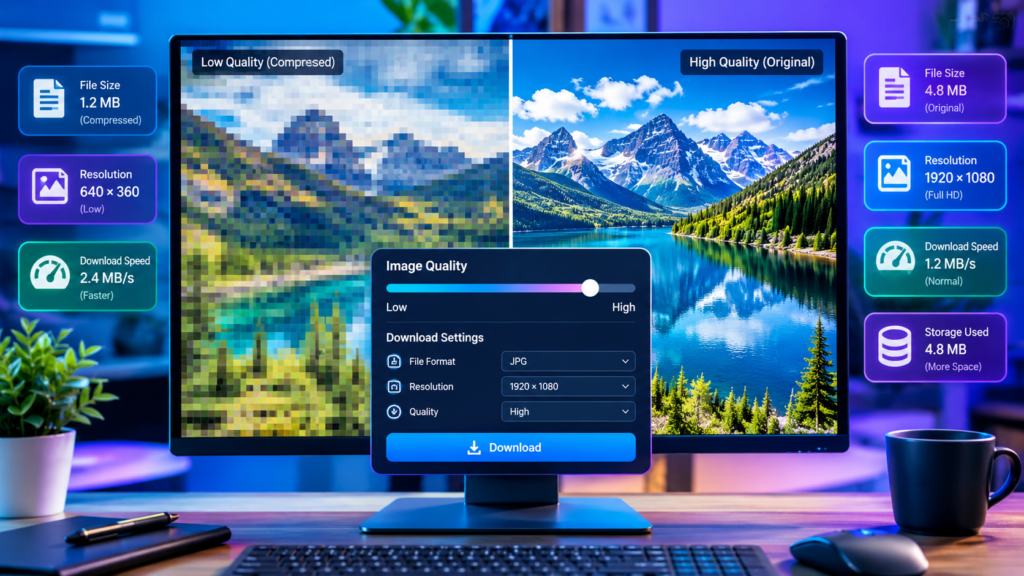
Image quality settings directly affect three things when you download an image: file size, visual clarity, and compatibility. Higher quality settings preserve more detail but create larger files, while lower quality settings reduce file size at the cost of sharpness, color accuracy, and overall appearance. Understanding this balance helps you choose the right download settings whether you’re saving photos, website images, graphics, or social media content.
If you’ve ever downloaded the same image in different quality levels and noticed changes in sharpness, loading speed, or storage space, those differences come from image compression and quality settings. Knowing how these settings work can help you avoid blurry downloads, save storage space, and achieve the best results for your intended use.
What Are Image Quality Settings?
Image quality settings control how much visual information is preserved when an image is saved or downloaded. These settings are commonly found in:
- Photo editing software
- Camera applications
- Social media platforms
- Cloud storage services
- Website image download tools
- Graphic design programs
When an image is exported or downloaded, the software often compresses it to reduce file size. The quality setting determines how much compression is applied.
In general:
| Quality Level | Visual Quality | File Size |
|---|---|---|
| Low | Noticeable loss of detail | Small |
| Medium | Balanced appearance | Moderate |
| High | Minimal quality loss | Large |
| Maximum | Near-original quality | Very large |
The higher the quality setting, the more image data is retained.
Why File Size Changes With Quality Settings
One of the biggest effects of image quality settings is file size.
Images contain information about:
- Colors
- Textures
- Lighting
- Fine details
- Edges and shapes
Higher quality downloads preserve more of this information. As a result, the file requires more storage space.
For example, a photograph may produce:
- Low quality: 500 KB
- Medium quality: 2 MB
- High quality: 6 MB
- Maximum quality: 12 MB
The exact numbers vary depending on the image, but the relationship remains the same: more quality usually means larger files.
This can affect:
- Device storage
- Upload speed
- Download time
- Website performance
- Sharing through email or messaging apps
Understanding Compression
To understand image quality settings, it’s important to understand compression.
Compression reduces file size by removing or reorganizing image data.
Lossless Compression
Lossless compression keeps all original image information.
Benefits include:
- No quality loss
- Preserved details
- Better for logos and graphics
Common formats include:
- PNG
- TIFF
- Some WebP files
The downside is larger file sizes.
Lossy Compression
Lossy compression permanently removes some image information.
Benefits include:
- Smaller files
- Faster downloads
- Easier sharing
Common formats include:
- JPEG
- Some WebP files
- AVIF
Excessive compression can create visible quality problems.
How Lower Quality Settings Affect Images
When quality settings are reduced significantly, several visual changes may appear.
Blurry Details
Fine details often disappear first.
Examples include:
- Hair strands
- Fabric textures
- Text in screenshots
- Landscape details
Images may look acceptable at first glance but reveal softness when viewed closely.
Compression Artifacts
Artifacts are unwanted visual distortions created by compression.
Common examples include:
- Blocky patterns
- Smudged areas
- Color banding
- Distorted edges
These artifacts become more noticeable as compression increases.
Reduced Color Accuracy
Aggressive compression may affect color transitions.
This can result in:
- Less vibrant tones
- Uneven gradients
- Visible color shifts
Photos with skies, shadows, and smooth backgrounds are particularly sensitive to this issue.
Pixelation
Very low-quality downloads may display visible square pixels.
Pixelation becomes particularly obvious when:
- Zooming in
- Printing images
- Viewing on large screens
How Higher Quality Settings Improve Downloads
Higher quality settings preserve more image information.
Benefits include:
Better Sharpness
Details remain clearer and more defined.
This is especially important for:
- Photography
- Product images
- Professional portfolios
- Printed materials
Improved Color Reproduction
Colors stay closer to the original image.
Benefits include:
- Smoother gradients
- Better skin tones
- More realistic lighting
Cleaner Edges
Text, graphics, and shapes maintain crisp boundaries without obvious distortion.
This is especially useful for:
- Logos
- Infographics
- Screenshots
- Marketing materials
Higher Print Quality
Images intended for printing generally require higher-quality downloads because printed defects are often more noticeable than those displayed on screens.
The Relationship Between Resolution and Quality
Many people confuse image quality with image resolution, but they are different concepts.
Resolution
Resolution refers to the image dimensions.
Examples:
- 800 × 600 pixels
- 1920 × 1080 pixels
- 4000 × 3000 pixels
Higher resolution means more pixels.
Quality Setting
Quality settings determine how much information is preserved within those pixels.
An image can have:
- High resolution but poor quality
- Low resolution but high quality
- High resolution and high quality
For example, a 4000 × 3000 image saved at very low quality may look worse than a smaller image saved at high quality.
How Quality Settings Affect Different Image Types
Not all images respond to compression in the same way.
Photographs
Photos typically contain:
- Complex textures
- Shadows
- Gradients
- Natural detail
These images benefit significantly from higher quality settings.
Heavy compression often produces visible quality loss.
Logos
Logos usually feature:
- Solid colors
- Sharp edges
- Simple shapes
Lossless formats often work better than heavily compressed downloads.
Screenshots
Text-heavy screenshots are sensitive to compression.
Low-quality downloads can make:
- Small text difficult to read
- Interface elements blurry
- Charts harder to understand
Higher quality settings are generally recommended.
Social Media Graphics
Social platforms frequently compress uploaded images automatically.
Downloading and re-uploading already compressed graphics can create a noticeable decline in quality over time.
Download Quality and Website Performance
For websites, image quality impacts user experience and performance.
Large high-quality files can:
- Increase page load times
- Use more bandwidth
- Affect mobile users
- Reduce performance scores
On the other hand, overly compressed images can:
- Appear unprofessional
- Reduce trust
- Hurt visual appeal
A balanced approach is often the best solution.
Website owners typically optimize images to achieve:
- Acceptable visual quality
- Reasonable file size
- Faster loading speeds
A Practical Example
Imagine a photographer provides three download options for the same image:
| Option | File Size | Best Use |
|---|---|---|
| Low Quality | 300 KB | Social sharing |
| Medium Quality | 2 MB | General viewing |
| High Quality | 10 MB | Printing and editing |
If you only want to send the image through a messaging app, the low-quality version may be sufficient.
If you plan to print it as wall art, the high-quality version is usually the better choice.
The “best” quality setting depends on how the image will be used.
Common Mistakes When Choosing Download Quality
Always Selecting Maximum Quality
Many users assume maximum quality is always best.
However, this can create:
- Unnecessarily large downloads
- Storage issues
- Slower uploads
For everyday viewing, a slightly compressed file may look nearly identical.
Choosing the Smallest File Possible
Reducing quality too aggressively may save storage but often produces disappointing results.
Images may become:
- Soft
- Pixelated
- Unprofessional-looking
Ignoring the Final Purpose
The ideal setting depends on the intended use.
Different goals require different levels of quality.
For example:
- Social media posts: medium quality often works well
- Professional printing: high quality is usually necessary
- Email attachments: lower file sizes may be preferable
Repeated Re-Saving
Each time a lossy format such as JPEG is re-saved, additional quality loss may occur.
Using the original version whenever possible helps preserve image quality.
How to Choose the Right Download Quality
A simple decision-making process can help.
Choose High Quality If:
- You plan to print the image
- You need professional presentation
- Fine details are important
- Further editing is expected
Choose Medium Quality If:
- The image is mainly for online viewing
- Balanced file size is important
- Storage space is limited
Choose Lower Quality If:
- Fast sharing matters more than detail
- Bandwidth is limited
- The image is temporary
The key is matching quality to purpose rather than automatically picking the highest or lowest setting.
Signs That an Image Was Downloaded at Too Low a Quality
Watch for these warning signs:
- Blurry text
- Fuzzy edges
- Blocky textures
- Visible compression patterns
- Poor color transitions
- Loss of fine details
If these issues are noticeable at normal viewing size, a higher download quality may be needed.
Modern Image Formats and Quality Efficiency
Newer image formats often achieve better quality at smaller file sizes.
Examples include:
WebP
WebP offers:
- Smaller files than many JPEG images
- Good visual quality
- Support for transparency
AVIF
AVIF can provide:
- Excellent compression
- High image quality
- Reduced storage requirements
However, compatibility may vary depending on software and devices.
JPEG
JPEG remains popular because it is widely supported and easy to use.
Its quality setting has a major impact on the final appearance and file size.
Frequently Asked Questions
Does higher image quality always mean a better-looking image?
Not necessarily. Beyond a certain point, quality improvements may be difficult to notice while file size increases significantly.
Can I restore quality after downloading a low-quality image?
Generally, no. Once information is removed through lossy compression, it cannot be fully recovered.
Why does the same image look different after downloading?
Websites, apps, and software may apply different compression levels during download, leading to changes in appearance and file size.
Is image quality more important than resolution?
Both matter. Resolution determines how many pixels are available, while quality determines how much detail those pixels contain.
What is the best download quality for everyday use?
Medium to high quality typically provides a good balance between visual appearance and file size for most users.
Final Thoughts
Image quality settings have a direct impact on how your downloaded images look, how much storage they require, and how well they perform across different devices and uses. Higher quality preserves details, colors, and sharpness, but increases file size. Lower quality reduces storage and bandwidth requirements, but can introduce blur, artifacts, and other visual issues.
Before downloading an image, consider its intended purpose. A file meant for professional printing has different requirements than one intended for quick online sharing. Choosing the right quality setting ensures you get the best balance between image appearance and practical file management.